
How to enable MacBook Charge Limit to make your battery last longer?

Aadil Raval
4 Min Read
Highlights
  • Apple has introduced a new feature on-board macOS called 'Battery Charge Limit'.
  • The feature is aimed towards limiting charging on-board modern lithium-ion batteries to slow down chemical wear and improve battery health.
  • You can set the battery charge limit to 80% or above, that disconnects charging when reaching the pre-determined limit on your MacBook.

You own a MacBook that is constantly connected to a power outlet when at home or the office. Well, it does help the MacBook’s battery be charged at all times, but it does have implications for the long-term battery health, as it is the nature of lithium-ion batteries to do so.

Turns out, Apple has introduced a feature called Charge Limitthat lets you set a lower upper limit for charging even if you keep the laptop connected to a power outlet. Here’s why you should turn on this feature and exactly how to do it.

What is MacBook Charge Limit, and why do you need it on your macOS?

If you are constantly keeping your MacBook charged at 100%, instead of gaining an upper hand in terms of backup, you are actually degrading it. Modern smartphones and laptops use lithium-ion batteries that degrade faster when they are in a high state of charge. In simple words, if your Mac’s battery remains at the upper 100% mark, it accelerates the constant chemical wear, causing the battery’s capacity to reduce over time. 
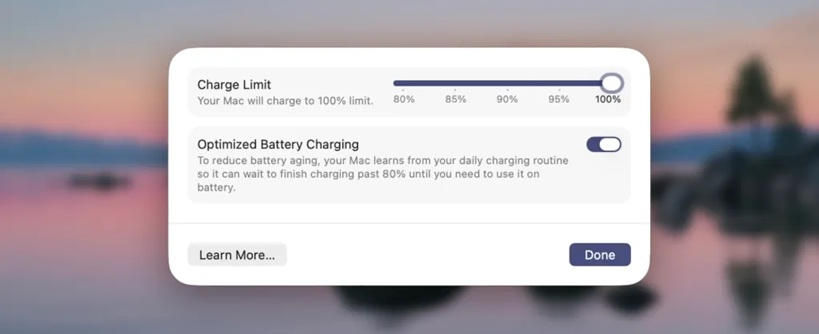
How to turn on MacBook Charge Limit on macOS
Image Credits: 9to5Mac

Lithium-ion batteries are prone to depletion in capacity, which means an iPhone’s battery at 100% on Day 1 may not be the same on Day 100 thanks to the constant wear and tear. 

Cut to now, Apple has introduced a new feature on macOS called ‘Charge Limit’ that actually prevents the battery from crossing a predetermined limit. Say you put the limit at 80% instead of charging overnight and reaching 100%. Even if the ‘Optimized Battery Charging’ feature is enabled, this feature actually limits it to 80%. It means once your battery life depletes, you’ll have to recharge, but it won’t proceed beyond the 80% limit as decided. 

We would recommend 80% as the limit to set, although you have options all the way till 95% (I am discounting 100% as it doesn’t make sense in this context).

The feature prevents overcharging beyond the set limit even if you put your Mac on charge overnight or throughout the day. Note that doing so helps get the juice required to work on the laptop or an iPhone; however, it continues to eat into the battery’s life. Either way, let’s check out the next section for step-by-step instructions. 

Keep up with the tech that actually matters.

From breaking news to deep dives, TrueTech brings you the tech stories worth knowing.
Add us as a preferred source on Google Search for quicker access to our coverage.

Add TrueTech as a preferred source on Google

How to set MacBook Battery Charge Limit on macOS?

Here’s how you can set a certain charge limit on your MacBook using this feature.

  1. First up, hit the Apple symbol in the menu bar and head over to ‘System Settings.’
  2. Next, proceed to ‘Battery’ listed in the sidebar.
  3. You need to click on the ‘i’ button against ‘Charging’ to open relevant functionalities and options.
  4. Now, you will be able to set ‘Charge Limit’ using the slider from 80%, 85%, and so on, to 100%. Finally, hit the ‘Done’ button to save the settings.

The iPhone 15 and newer models already have this ‘Charge Limit’ feature that we would recommend enabling. It will perhaps improve the overall battery life’s longevity.


Share This Article
Follow:
A wordsmith, a kin tech observer, a sci-fi fanatic and a scientific documentary buff.
Highlights
  • Apple has introduced a new feature on-board macOS called 'Battery Charge Limit'.
  • The feature is aimed towards limiting charging on-board modern lithium-ion batteries to slow down chemical wear and improve battery health.
  • You can set the battery charge limit to 80% or above, that disconnects charging when reaching the pre-determined limit on your MacBook.

You own a MacBook that is constantly connected to a power outlet when at home or the office. Well, it does help the MacBook’s battery be charged at all times, but it does have implications for the long-term battery health, as it is the nature of lithium-ion batteries to do so.

Turns out, Apple has introduced a feature called Charge Limitthat lets you set a lower upper limit for charging even if you keep the laptop connected to a power outlet. Here’s why you should turn on this feature and exactly how to do it.

What is MacBook Charge Limit, and why do you need it on your macOS?

If you are constantly keeping your MacBook charged at 100%, instead of gaining an upper hand in terms of backup, you are actually degrading it. Modern smartphones and laptops use lithium-ion batteries that degrade faster when they are in a high state of charge. In simple words, if your Mac’s battery remains at the upper 100% mark, it accelerates the constant chemical wear, causing the battery’s capacity to reduce over time. 

How to turn on MacBook Charge Limit on macOS
Image Credits: 9to5Mac

Lithium-ion batteries are prone to depletion in capacity, which means an iPhone’s battery at 100% on Day 1 may not be the same on Day 100 thanks to the constant wear and tear. 

Cut to now, Apple has introduced a new feature on macOS called ‘Charge Limit’ that actually prevents the battery from crossing a predetermined limit. Say you put the limit at 80% instead of charging overnight and reaching 100%. Even if the ‘Optimized Battery Charging’ feature is enabled, this feature actually limits it to 80%. It means once your battery life depletes, you’ll have to recharge, but it won’t proceed beyond the 80% limit as decided. 

We would recommend 80% as the limit to set, although you have options all the way till 95% (I am discounting 100% as it doesn’t make sense in this context).

The feature prevents overcharging beyond the set limit even if you put your Mac on charge overnight or throughout the day. Note that doing so helps get the juice required to work on the laptop or an iPhone; however, it continues to eat into the battery’s life. Either way, let’s check out the next section for step-by-step instructions. 

Keep up with the tech that actually matters.

From breaking news to deep dives, TrueTech brings you the tech stories worth knowing.
Add us as a preferred source on Google Search for quicker access to our coverage.

Add TrueTech as a preferred source on Google

How to set MacBook Battery Charge Limit on macOS?

Here’s how you can set a certain charge limit on your MacBook using this feature.

  1. First up, hit the Apple symbol in the menu bar and head over to ‘System Settings.’
  2. Next, proceed to ‘Battery’ listed in the sidebar.
  3. You need to click on the ‘i’ button against ‘Charging’ to open relevant functionalities and options.
  4. Now, you will be able to set ‘Charge Limit’ using the slider from 80%, 85%, and so on, to 100%. Finally, hit the ‘Done’ button to save the settings.

The iPhone 15 and newer models already have this ‘Charge Limit’ feature that we would recommend enabling. It will perhaps improve the overall battery life’s longevity.

Share This Article
Follow:
A wordsmith, a kin tech observer, a sci-fi fanatic and a scientific documentary buff.