- Where to Find Smartphone Camera Settings
- Switch to a High-Efficiency Photo Format
- Use High-Resolution Modes Selectively
- Turn On RAW Only When You Plan to Edit
- Pick Video Resolution and Frame Rate on Purpose
- Adjust for Backlight, Low Light, and Natural Color
- Small Toggles That Make a Big Difference
- FAQ: Smartphone Camera Settings
- Choose Settings That Fit How You Shoot
Phone cameras have never been more capable, with 200 MP sensors, RAW capture, and 4K video at 60 frames per second now common on mid-range and flagship models alike. Yet most people never open the camera settings menu, which means they’re either missing out on quality or quietly filling up their phone with files far bigger than they need. So which smartphone camera settings are worth changing in 2026?
Five of these matter the most:
- photo format,
- resolution mode,
- RAW capture,
- video resolution and frame rate,
- and composition aids like the grid.
Together they shape image quality and how much space each shot uses.
The right choice for each one isn’t the same for everyone, though. A setting that’s perfect for someone editing photos on a laptop can be a waste of space for someone who mostly shares on social media, so it helps to know what each option actually does before flipping the switch.
Where to Find Smartphone Camera Settings
Use this quick guide to find the controls before working through the choices below. Android camera settings vary by manufacturer and software version.
On iPhone
- Open Settings > Camera > Formats for High Efficiency or Most Compatible. On supported Pro models, this is also where you enable ProRAW and resolution controls.
- Open Settings > Camera > Record Video to choose resolution and frame rate, and to check the HDR Video option on supported models.
- Under Settings > Camera, turn on Grid and Level, then open Preserve Settings to choose which adjustments the camera remembers.
These paths follow Apple’s guidance on photo formats, video settings, and camera tools.
On Samsung Galaxy and Other Android Phones
- Open Camera, then tap the settings cog. On some Galaxy layouts, tap the four-dot Quick controls button first, then Settings.
- Look for Advanced picture options for HEIF or RAW, Grid lines for composition, and Settings to keep for saved preferences.
- On another Android brand, start in its Camera app’s settings menu and check the model’s help page if those labels differ.
Samsung’s camera guide lists these controls and notes that availability depends on the model.
Smartphone Camera Settings for Photos and Video
Pick a starting point for the result you need, then change one setting at a time.
| Your goal | Photo settings | Video starting point |
| Everyday sharing | HEIF or JPEG, default resolution, RAW off. | 1080p at 30 fps for smaller sharing files. |
| Large prints or cropping | Try full resolution in bright light; compare detail before keeping the larger file. | 4K at 30 fps when extra detail is useful. |
| Editing afterward | ProRAW or Expert RAW with a compatible editor; retain the original. | Check HDR compatibility with your editor and final display. |
HEIF vs JPEG is mainly a storage and compatibility decision here. RAW is a separate editing choice, rather than a setting everyone needs.
Switch to a High-Efficiency Photo Format
Most modern phones can save photos in HEIF (or HEIC), a format that keeps roughly the same visual quality as JPEG at about half the file size. On an iPhone, a typical 12 MP HEIF photo comes in around 1 MB to 2 MB, compared with roughly 3 MB to 4 MB for the same shot saved as a JPEG.
On iPhone, the option lives under Settings > Camera > Formats, where “High Efficiency” saves HEIF and “Most Compatible” saves JPEG. Many Android phones, including Samsung’s Galaxy lineup, offer a similar high-efficiency picture toggle inside the camera app’s settings.
The trade-off is compatibility. Some older computers, photo printers, and websites still expect JPEG files. If you regularly send photos to those, sticking with JPEG avoids headaches. For everyone else, high-efficiency is the easy win.
Use High-Resolution Modes Selectively
Megapixel counts have exploded. Phones like the Vivo X300 Ultra are tipped to pack two 200 MP sensors, while 48 MP and 50 MP main cameras are now standard. By default, most of these phones use pixel binning, merging groups of pixels into one to produce a sharper, cleaner 12 MP or 12.5 MP image, especially in low light.
Switching to full resolution has its place. It’s useful for landscapes in bright daylight or when you plan to crop heavily. But full-resolution files are much larger. A single 200 MP shot typically runs anywhere from about 15 MB to 40 MB depending on the scene. Bigger isn’t always better, either. After comparing several flagships, TechRadar concluded that 200 MP is overkill for most photos.
The smart approach is to leave the default binned mode on for everyday shooting and switch to full resolution only for specific shots, then switch back.
Turn On RAW Only When You Plan to Edit
RAW formats such as Apple ProRAW and Samsung’s Expert RAW capture far more image data than a standard photo. That gives editors more room to recover shadows, fix white balance, and fine-tune color, but it comes at a steep storage cost.
According to Apple, a 12 MP ProRAW image is about 25 MB, and a 48 MP ProRAW image is about 75 MB. As MacRumors reported when 48 MP ProRAW first arrived on the iPhone 14 Pro, those files are roughly three times larger than 12 MP shots. Compare that with a 1 MB to 2 MB HEIF photo, and the difference becomes obvious fast.
Before leaving RAW on all the time, it’s worth seeing how file sizes add up over a weekend of shooting. A few hundred RAW photos can take up as much space as thousands of standard ones. Most phones let you add a quick RAW toggle to the camera screen, so you can turn it on for the shots you actually plan to edit and leave it off the rest of the time.
Before using RAW for a trip or an event, open one test file in the app you plan to edit with. Apple’s ProRAW guide confirms support in Photos and compatible editing apps. Keep the original file for editing, then export a finished JPEG for sharing; the editing file and the delivery copy serve different jobs.
Pick Video Resolution and Frame Rate on Purpose
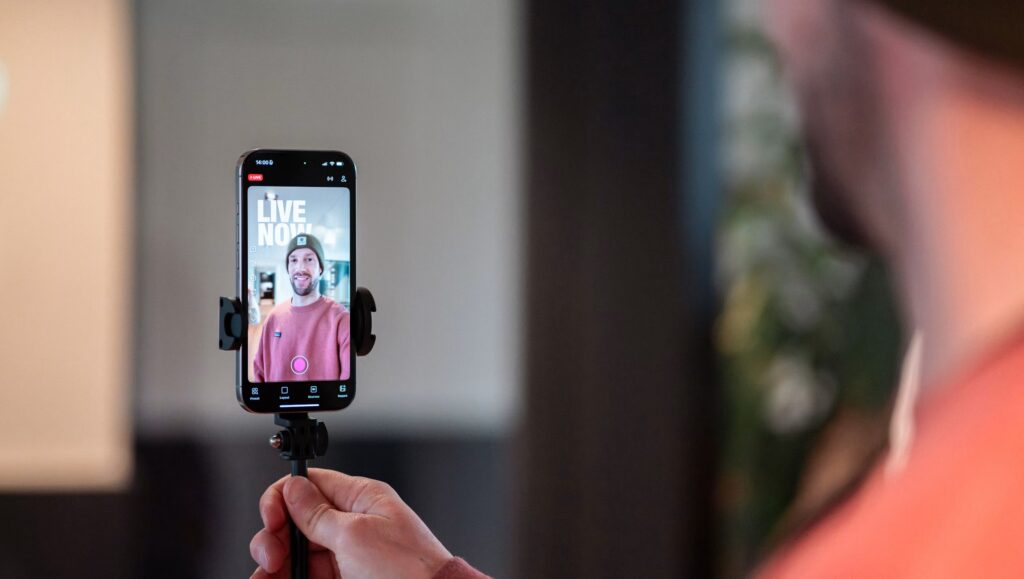
Video is where storage disappears fastest. Apple’s own estimates put one minute of 1080p video at 30 fps at about 6 MB, 4K at 30 fps at about 170 MB, and 4K at 60 fps at about 400 MB. That means a single 10-minute 4K/60 clip can take up roughly 4 GB.
For most people, 4K at 30 fps is the sweet spot for everyday video: sharp, smooth enough, and far lighter than 60 fps. Save 60 fps for fast action like sports, pets, or kids running around, where the extra smoothness shows. If you mostly share clips on messaging apps or social media, 1080p is often all you need, since those platforms compress video anyway.
Also check for features like auto frame rate in low light and enhanced stabilization, which can improve results without manual tweaking.
HDR video deserves a look too. Many recent phones, including every iPhone since the iPhone 12, can record HDR video that looks vivid on HDR-capable screens. On some apps and older displays, though, those clips can appear washed out or overly bright. If your videos look off after sharing, try switching HDR video off and compare the results.
Check Video Codec Compatibility
On iPhone, High Efficiency uses HEVC, also called H.265, for video; Most Compatible uses H.264. Apple explains the format trade-off: HEVC compresses video more efficiently, while H.264 is useful for older devices and workflows that cannot handle HEVC.
Adjust for Backlight, Low Light, and Natural Color
Photo HDR and HDR video are separate controls. For a person against a bright window, photo HDR combines different exposures to retain highlight and shadow detail. iPhone applies it automatically when useful; a manual Smart HDR switch is available only on some models.
For a still scene at night, let Night mode finish its capture before moving the phone. Apple recommends keeping the phone steady, using a secure surface or tripod if needed. A longer capture is a poor starting point for a moving child or pet: try ordinary Photo mode and more light instead.
On Galaxy phones, Scene optimizer can change exposure, contrast, and white balance. If its colors look too strong, compare one shot with it on and one with it off before choosing a default. This is a preference check, rather than a reason to disable every automatic feature.
Small Toggles That Make a Big Difference
Some of the most useful settings have nothing to do with file size. Turning on the grid overlay makes it easier to follow the rule of thirds and keep horizons straight, and many phones also offer a level indicator for flat-lay and architecture shots.
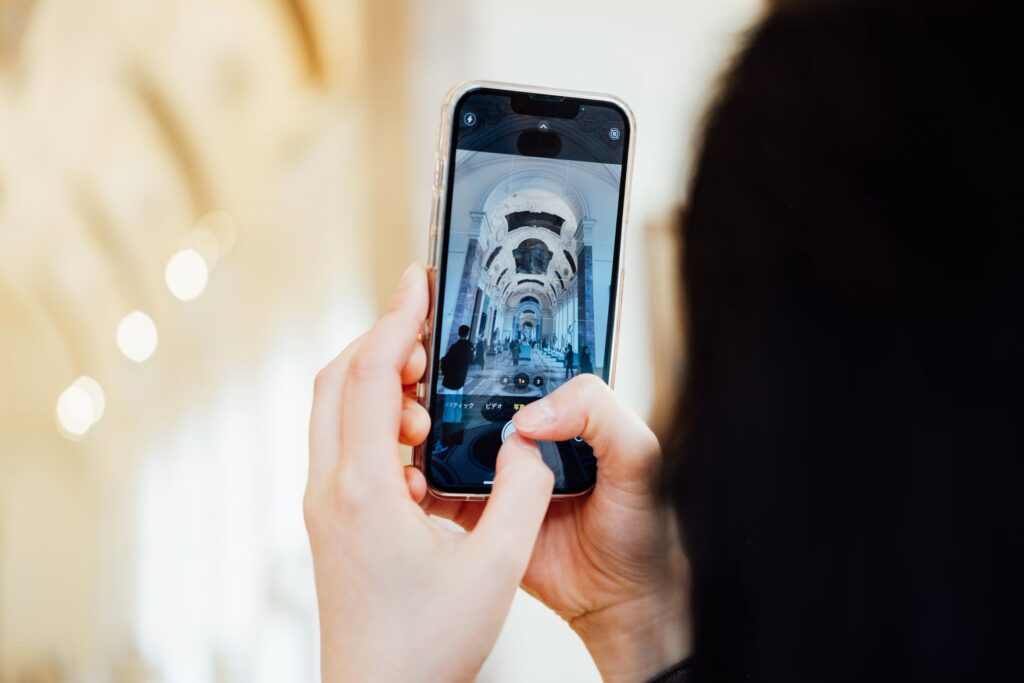
Live photos and motion photos save a short video clip alongside each picture. They’re fun, but they add to every file, so consider turning them off if you rarely use them. It’s also worth checking whether your front camera mirrors selfies and whether scene optimization or AI enhancement is making colors look more saturated than you’d like.
Finally, look for a “preserve settings” option. It stops the camera from resetting to its defaults every time you open it, so your preferred mode, filter, or exposure adjustment stays put.
Set Focus and Exposure Before Changing Modes
If a face is too dark against a bright background, tap the face and check the preview before taking the shot. On iPhone, drag the exposure control beside the focus area to adjust brightness. Touch and hold until AE/AF Lock appears to keep focus and exposure consistent while you reframe; tap again to unlock. Apple documents these focus and exposure controls.
FAQ: Smartphone Camera Settings
How to set phone camera quality?
Start with the normal Photo mode and default resolution. For a bright scene you plan to crop or print large, try a full-resolution shot and compare the detail. Choose RAW only when you intend to edit it. For everyday sharing, a processed HEIF or JPEG is easier to manage.
What are the 7 basics of photography?
A useful seven-part checklist for smartphone photography is light, composition, focus, exposure, color, camera movement, and timing. Use it to diagnose the photograph: a crooked horizon calls for a framing adjustment, while a dark face calls for an exposure check. Increasing resolution won’t fix either problem.
How do I take a picture on my phone?
Open Camera, select Photo, frame the subject, and tap the subject to set focus where your camera supports it. Check brightness, hold the phone steady, and press the shutter. Review the result before changing several settings at once.
How do I get to camera settings on Android?
Open the Camera app and look for its settings cog or controls menu. On some Samsung Galaxy layouts, tap Quick controls, then Settings. The options vary by phone; use the iPhone and Android paths earlier in this guide as a starting point.
Can you explain the different features of a phone camera?
Focus picks the subject that appears sharp; exposure controls brightness; resolution sets pixel dimensions; and formats such as HEIF, JPEG, or RAW determine how image data is saved. Photo, Video, and Night are shooting modes. Understanding those differences makes it easier to change one control for a specific result.
Choose Settings That Fit How You Shoot
Choose smartphone camera settings you can leave on for everyday photos, then reach for RAW, full resolution or a different video mode when you have a reason to use them. The choices depend on what you want from the image and what you plan to do with it afterward.
Test a change on a familiar scene before making it permanent. Compare the result at the size you normally view or share it, and check the file size too. If you can see the improvement and the storage cost makes sense, keep it. Otherwise, return to your usual setting.