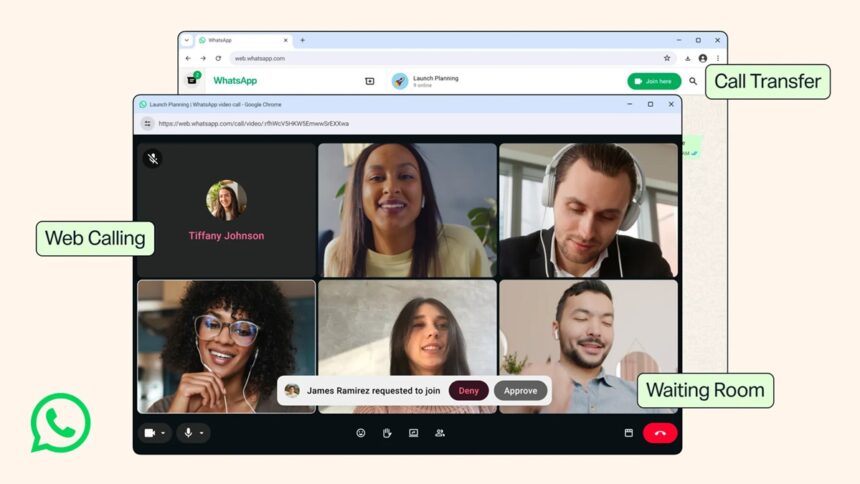
- WhatsApp now lets you make voice and video calls on the web.
- Unlike before, you no longer need an app install on your PC to run WhatsApp calls.
- Here's how you can use WhatsApp to make calls on the web and enjoy features such as QuickHD, Waiting Room, Call Transfer, etc.
Introducing WhatsApp calls on the web. Whether you are on your phone, desktop, or web, WhatsApp now lets users accept voice over IP or video over IP without any hassle. Arriving in late July 2026, the latest update rolls out, allowing users to make voice or video calls on WhatsApp Web, which operates independently of the desktop client.
Introducing WhatsApp calls on the web
The latest update coming on WhatsApp in late July 2026 rolls out a feature letting users make calls on WhatsApp Web. It includes both voice and video calls (both individual and group). Unlike before, you no longer need an app client on your desktop, aka no app install required. Instead, all you need is a PC, a browser, and ‘www.web.whatsapp.com’ to reach out on a call with ease.
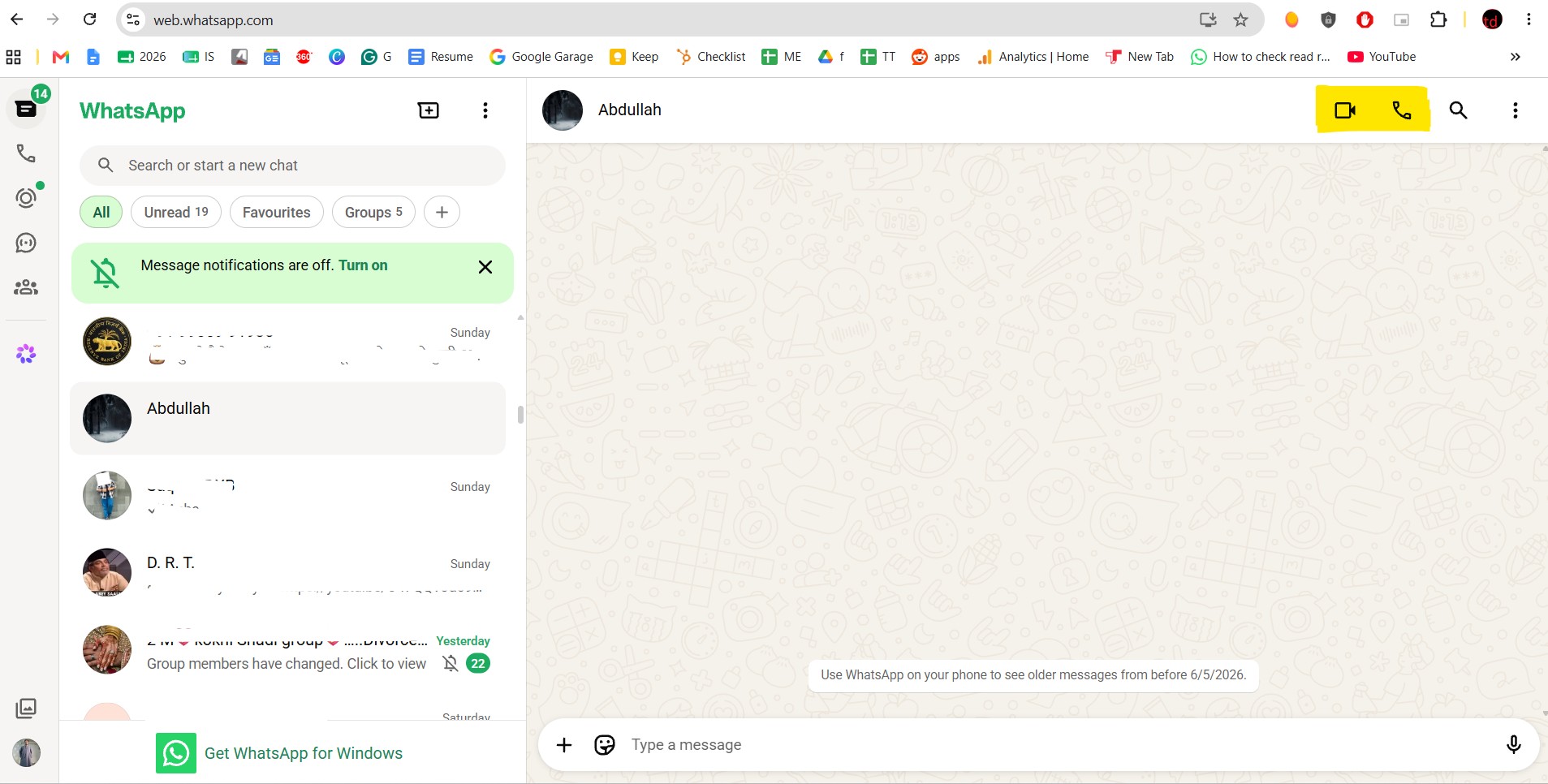
It is a great feature if you no longer want to download WhatsApp on your desktop or are not allowed to install it to begin with. Here’s how you can make WhatsApp voice and video calls on the web.
How to make a WhatsApp voice call on the web?
- Go to WhatsApp Web on your PC (www.web.whatsapp.com).
- Next, open the profile/group on WhatsApp where you want to make a WhatsApp voice call.
- Hit the ‘Voice Call’ icon in the top-right corner.
Note: If you are in a country that requires a VPN before making a WhatsApp voice call, you need to turn it ON. Without that, you won’t be able to connect.
How to make a WhatsApp video call on the web?
- Go to WhatsApp Web on your desktop (www.web.whatsapp.com).
- You need to go to the WhatsApp profile of the person/group you want to call.
- Finally, hit the ‘Video Call’ icon in the top-right corner.
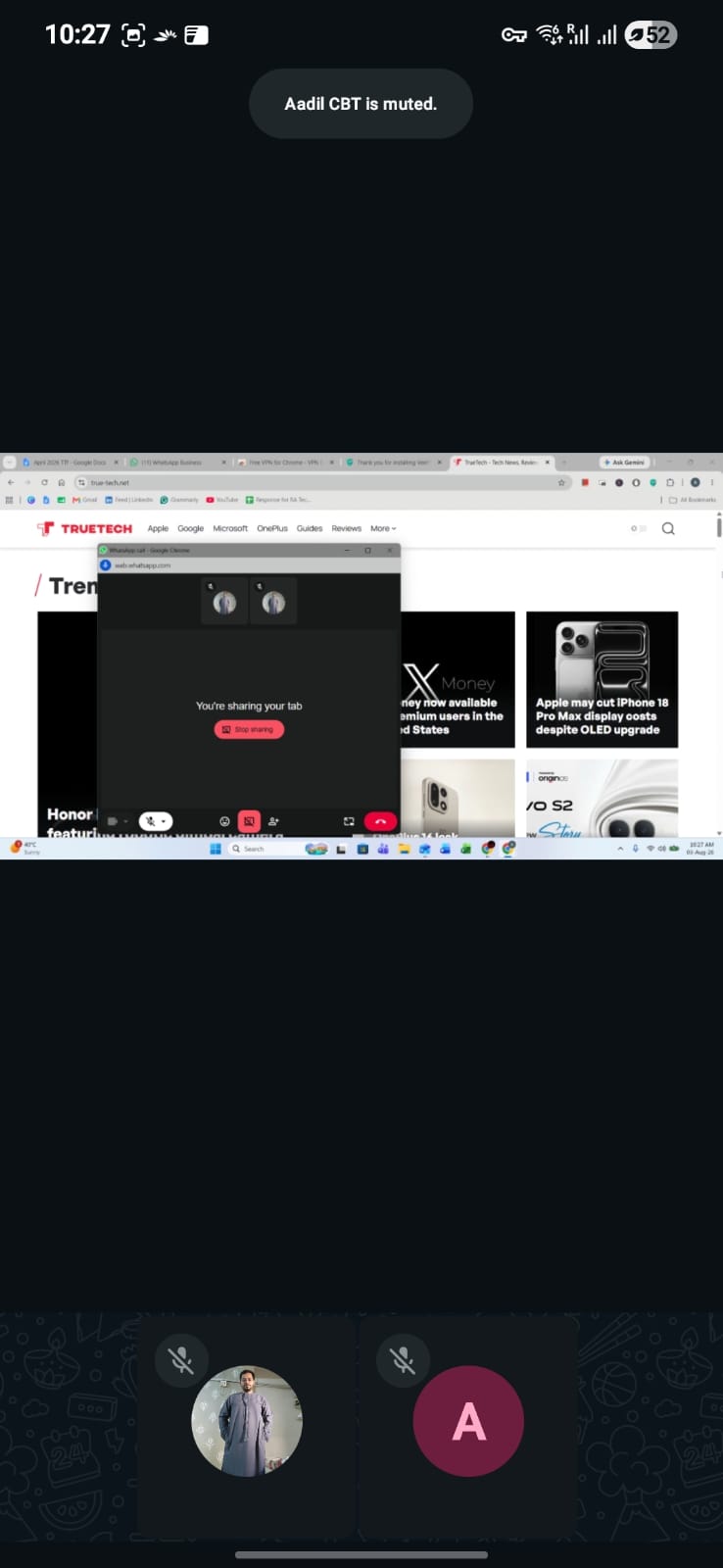
- Once you are connected on a video or group call, you can open a separate window that accounts for better controls.
- You can ‘Share Screen’ either a particular window or the entire screen as you prefer.
Note: WhatsApp Web is adding more features as we go forward, including Call Transfer and Waiting Room, among others explained below. You still need a VPN to access VoIP services if you stay in a country that bans calls right away.

Everything you can do on voice/video calls on WhatsApp Web
Well, it’s not just WhatsApp voice or video calls on the web, but rather Meta is releasing several features onboard. For instance, you can share your screen from a desktop to another desktop (on a call) or from a small to a large screen or vice versa. You can transfer calls between screens. It means if you start a call on your phone, you can transfer it to a desktop or the web for further collaboration.
There’s also a feature of a ‘Waiting Room’ where everyone joining a WhatsApp call link will assemble, asking for approval to join. This works similarly to Teams or Zoom, ensuring nobody crashes an ongoing call without the admin’s approval. We have QuickHD, a feature that tunes in a high-quality video experience the moment you step on a call. Finally, WhatsApp is rolling out a noise suppression feature that gets rid of background noise, allowing participants to speak and others to listen clearly, even when they are in a busy or loud environment.
Keep up with the tech that actually matters.
Add us as a preferred source on Google Search for quicker access to our coverage.