How to turn off Visited Places feature on iPhones?

Aadil Raval
4 Min Read
Highlights
  • Apple Maps introduced a new feature on-board iOS 26 that keeps a track of all the places you visit.
  • It is your digital logger to keep track of the places categorized into restaurants, transit stops, shops, parks, etc.
  • However, it can be a privacy issue and here's how you can actually turn it off on your iPhone using these easy step-by-step instructions.

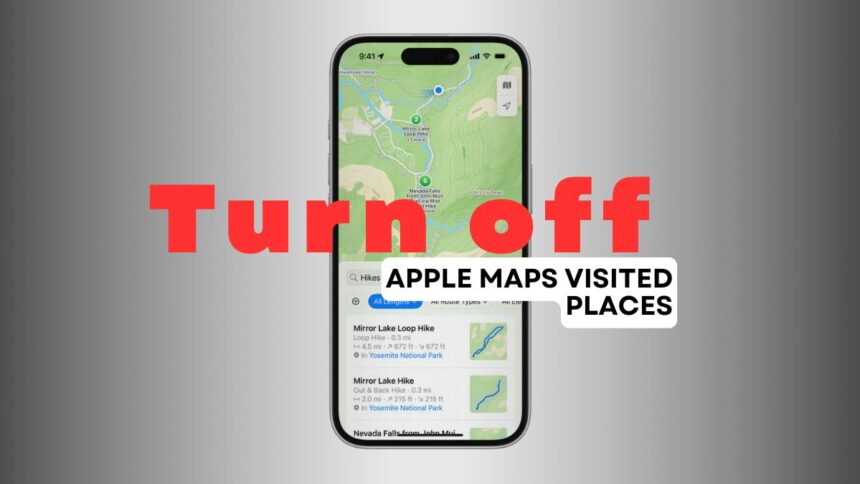
Starting with iOS 26, Apple Maps records your locations using the Visited Places feature. The aim is to make it easier to find places you have visited earlier. However, enabling the feature also means your phone will be constantly tracking your location without any human intervention, and this could be a major privacy red flag for many. Here’s your guide on Apple Maps’ Visited Places and how to turn it off, for good.

What is the Apple Maps Visited Places feature?

Apple introduced ‘Visited Places’ as a feature on Apple Maps that keeps track of locations you visit and organizes them into categories such as restaurants, parks, shops, transit stops, etc. Users can check it out when needed across all the Apple devices connected with the same account, thanks to the auto-synching. Say you want to share the restaurant you visited last Friday with a friend, but you couldn’t remember the name. Visited Places can be a savior.

The Cupertino-based giant maintains that this feature is end-to-end encrypted; however, it can be a privacy issue since the feature tracks locations, date, and time based on user preferences, making it easier for anyone to track your whereabouts. Say someone snooping on your iPhone can check exactly where you have been at any particular time and date. I personally feel this might lead to crossing boundaries, as I don’t want my phone to keep track of places I visit.
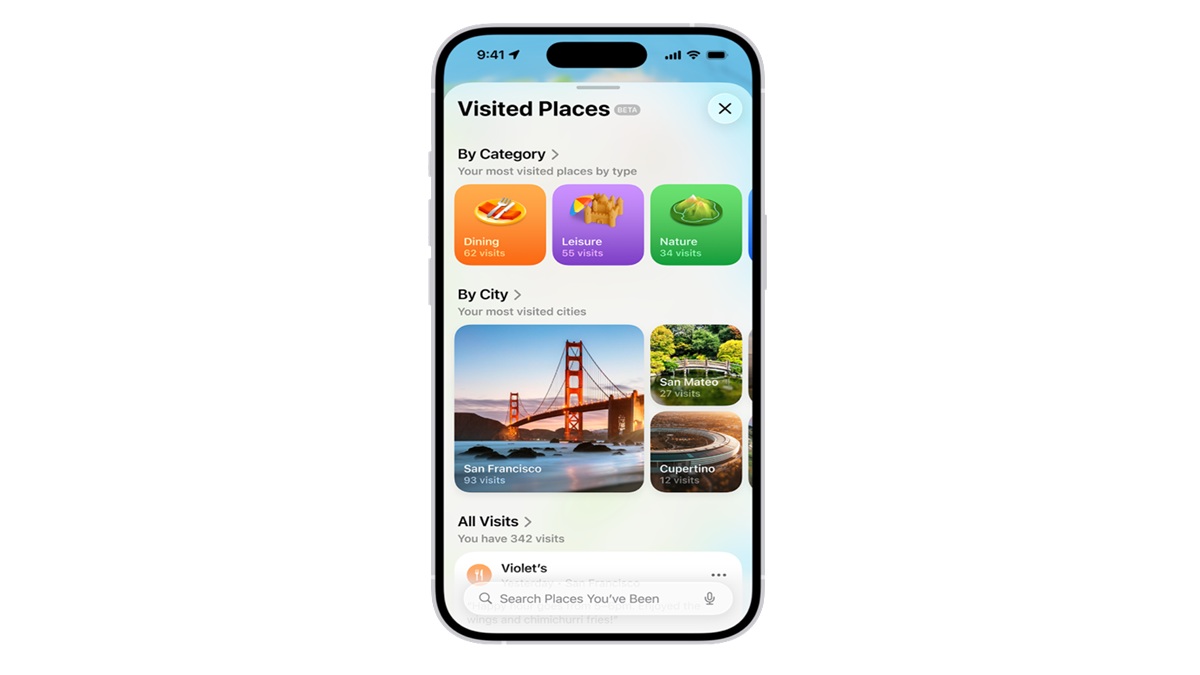
how to turn off visited places feature on Apple Maps iOS 26
Image Credits: Apple Support

How to turn off Visited Places?

If you follow the same, here’s your guide on how to turn off Visited Places on your iPhone running on iOS 26 and iOS 27 (and future iterations).

  1. Open Settings on your iPhone.
  2. Head to Apps >> Maps >> Location.
  3. Simply switch the toggle against ‘Visited Places,’ and the feature should stop logging locations.

Alternatively, you can head over to Privacy and Security >> Location Services >> Maps to turn off Visited Places as well.

How to clear the Visited Places history?

Let’s say you want to keep the feature enabled but choose to delete certain or all location pins. Here’s how to do it.

  1. First up, launch the Apple Maps app on your iPhone.
  2. Head over to Places >> Visited Places.
  3. You can select places to delete or tap on ‘Clear History >> Clear All’ to get rid of all places in just one click. 

Wrapping up!

I get it; Apple wants to make it easier for users to keep track of places they visit. Since this feature works under the hood and 24/7, I feel it is better left turned off. On the other hand, you can keep it enabled and tracking if you can constantly check for listings to remove any locations you don’t want others to see. 

Keep up with the tech that actually matters.

From breaking news to deep dives, TrueTech brings you the tech stories worth knowing.
Add us as a preferred source on Google Search for quicker access to our coverage.

Add TrueTech as a preferred source on Google
Share This Article
Follow:
A wordsmith, a kin tech observer, a sci-fi fanatic and a scientific documentary buff.
Highlights
  • Apple Maps introduced a new feature on-board iOS 26 that keeps a track of all the places you visit.
  • It is your digital logger to keep track of the places categorized into restaurants, transit stops, shops, parks, etc.
  • However, it can be a privacy issue and here's how you can actually turn it off on your iPhone using these easy step-by-step instructions.

Starting with iOS 26, Apple Maps records your locations using the Visited Places feature. The aim is to make it easier to find places you have visited earlier. However, enabling the feature also means your phone will be constantly tracking your location without any human intervention, and this could be a major privacy red flag for many. Here’s your guide on Apple Maps’ Visited Places and how to turn it off, for good.

What is the Apple Maps Visited Places feature?

Apple introduced ‘Visited Places’ as a feature on Apple Maps that keeps track of locations you visit and organizes them into categories such as restaurants, parks, shops, transit stops, etc. Users can check it out when needed across all the Apple devices connected with the same account, thanks to the auto-synching. Say you want to share the restaurant you visited last Friday with a friend, but you couldn’t remember the name. Visited Places can be a savior.

The Cupertino-based giant maintains that this feature is end-to-end encrypted; however, it can be a privacy issue since the feature tracks locations, date, and time based on user preferences, making it easier for anyone to track your whereabouts. Say someone snooping on your iPhone can check exactly where you have been at any particular time and date. I personally feel this might lead to crossing boundaries, as I don’t want my phone to keep track of places I visit.

how to turn off visited places feature on Apple Maps iOS 26
Image Credits: Apple Support

How to turn off Visited Places?

If you follow the same, here’s your guide on how to turn off Visited Places on your iPhone running on iOS 26 and iOS 27 (and future iterations).

  1. Open Settings on your iPhone.
  2. Head to Apps >> Maps >> Location.
  3. Simply switch the toggle against ‘Visited Places,’ and the feature should stop logging locations.

Alternatively, you can head over to Privacy and Security >> Location Services >> Maps to turn off Visited Places as well.

How to clear the Visited Places history?

Let’s say you want to keep the feature enabled but choose to delete certain or all location pins. Here’s how to do it.

  1. First up, launch the Apple Maps app on your iPhone.
  2. Head over to Places >> Visited Places.
  3. You can select places to delete or tap on ‘Clear History >> Clear All’ to get rid of all places in just one click. 

Wrapping up!

I get it; Apple wants to make it easier for users to keep track of places they visit. Since this feature works under the hood and 24/7, I feel it is better left turned off. On the other hand, you can keep it enabled and tracking if you can constantly check for listings to remove any locations you don’t want others to see. 

Keep up with the tech that actually matters.

From breaking news to deep dives, TrueTech brings you the tech stories worth knowing.
Add us as a preferred source on Google Search for quicker access to our coverage.

Add TrueTech as a preferred source on Google
Share This Article
Follow:
A wordsmith, a kin tech observer, a sci-fi fanatic and a scientific documentary buff.