- Travel routers are great as they let users bypass limitations on number of devices you can pair on a network.
- Cut to now, your modern Android phone is able to mimic the same functionalities as a travel router allowing users to connect multiple devices at once.
- Since you can engage VPN on your phone, the connection is secured and thus, you remain protected against prying eyes.
When you are traveling, there’s seldom anything more important than Wi-Fi—and Wi-Fi Sharing on Android can make staying connected far less frustrating. Although internet access is now common almost everywhere, from airports and restaurants to metros and cafés, actually connecting to these networks can still be a hassle. Many travelers rely on travel routers, but hotels and airlines often cap the number of connected devices unless you pay extra, which makes the experience both inconvenient and expensive.
Modern Android phones aren’t just known for their processing power, camera, display, and whatnot, but also for their functionalities. One such feature turns your Android phone into a portable travel router, making it unnecessary to carry additional hardware, i.e., the travel router. That’s how you connect to multiple devices at any given time, be it your phone, tablet, laptop, etc.
The latest phones have a feature called Wi-Fi Sharing on Android that enables users to connect them to a router and set up a VPN to it to ensure the connection is secure, and then, it is all about how many devices you can connect to a single device. Unlike a hotspot that will limit the internet speed, Wi-Fi Sharing ensures all the connected devices get the maximum speeds possible without any compromise.
How to use Wi-Fi Sharing on Android?
First and foremost, you’ll need a relatively new Android smartphone to enable Wi-Fi Sharing. This is because the older phones may not have the Wi-Fi hardware required to support concurrent Access Point and Station Mode. It means they cannot function as both a client and a hotspot simultaneously. Here’s how you can use Wi-Fi Sharing on Android and connect to Android, iOS, or other devices.
- First, you need to turn on Wi-Fi on your primary phone and ensure it is connected to a Wi-Fi network. This is where you often get a login or a captive portal that requires user authentication before finally logging in.
- Next, turn ON ‘Wi-Fi Hotspot’ on your primary device via ‘Settings >> Hotspot and Tethering >> Wi-Fi Hotspot.’ Note that the path may differ based on your make and model.
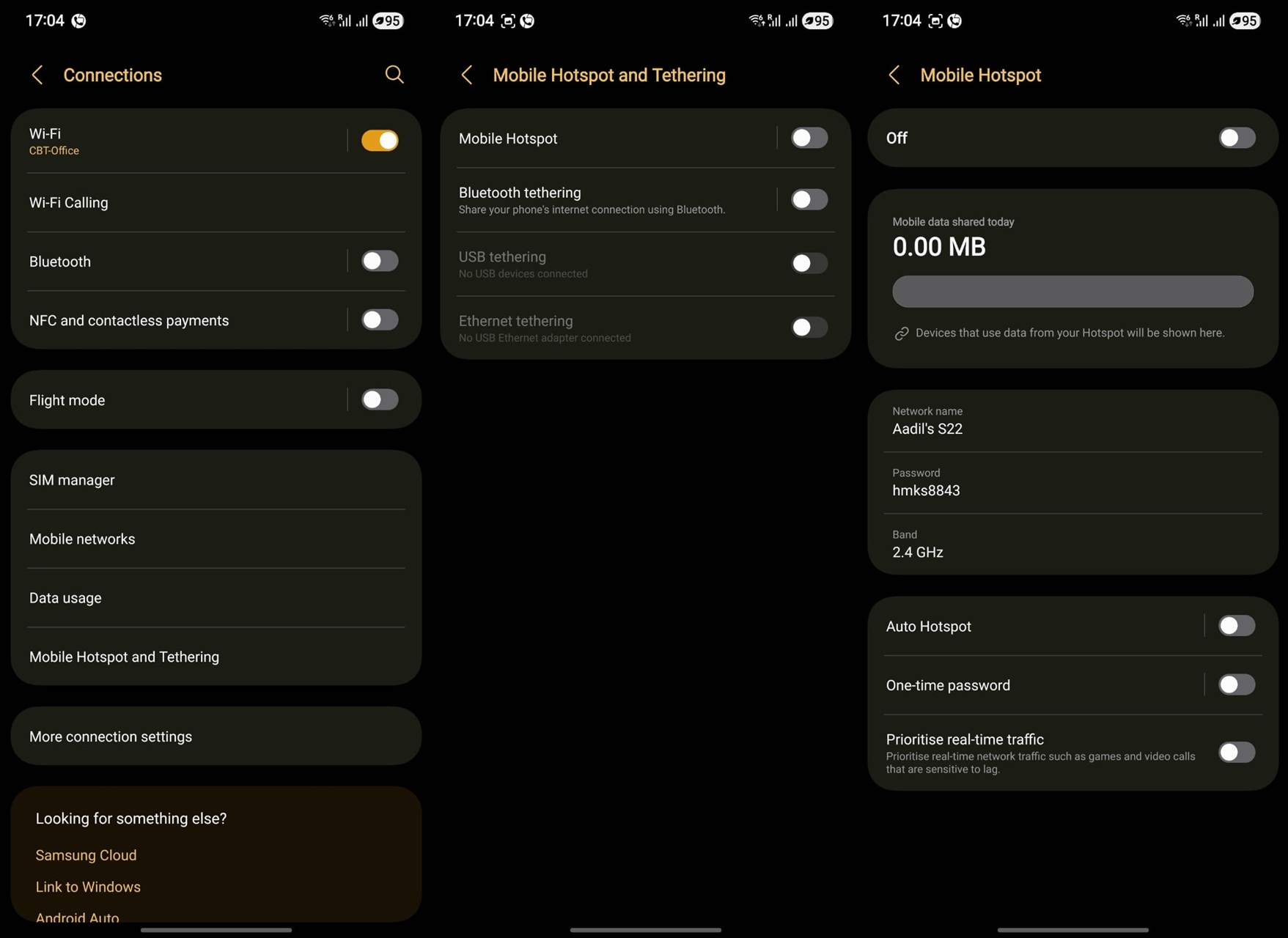
- In case your phone doesn’t support Wi-Fi Sharing, the hotspot toggle should disable Wi-Fi and vice versa. If it does, you should be able to share your network with others.
- The next thing you should do is connect all the secondary devices to the primary one using the password mentioned under ‘Hotspot’ in ‘Settings.’
- You should be able to check the number of connections made via Settings >> Wi-Fi >> Hotspot and Tethering >> Mobile Hotspot.
Related

Things you can do on this private network to make it secure
Your primary phone is connected to Wi-Fi at a restaurant, an airport, a public park, on public transport, etc. Since you have a VPN engaged (better to have it), you just levied a security mechanism that keeps prying eyes off your phone. Next up, connect with your primary device, and bingo, everything is done.
In the ‘Mobile Hotspot and Tethering’ settings, you can still do a number of things. First up, you can monitor the number of connections made to your primary device, such as your smartwatch, a tablet, a smart TV, etc. You can change the password at will to prevent unlawful usage. In fact, you can set up one-time passwords that expire once you kill the hotspot. Again, all these depend on the make and model you are using.