iOS 26.1 beta 4 now lets you control liquid glass feature

Aadil Raval
3 Min Read
Highlights
  • Apple is rolling out a new control setting for it's Liquid Glass feature on-board iOS 26.1 beta 4.
  • The settings allows users to change between 'tinted' and 'clear' view based on their preferences.
  • Apple is marking its last leg of beta rollout for the stable iOS 26.1 rolls out next week and this was a much-needed feature.

Apple recently released iOS 26.1 beta 4 for developers with a tonne of minor to major updates. Post the update, Apple now allows iOS 26 users to toggle its Liquid Glass feature as per their preference giving it a more welcoming feel than ever.

Now you can set Liquid Glass feature to “tinted” or “frosted” with iOS 26.1 beta 4

On-board the latest iOS 26.1 beta 4 for developers, Apple has tweaked ‘Liquid Glass’ to feature two settings i.e. ‘Clear’ and ‘Tinted’. For the unversed, this feature was rolled out with a toggle to turn it ON or OFF with nowhere else to go in-between. 

Instead of setting the Liquid Glass feature to ‘Clear’ as a default, now users can choose another control setting i.e. ‘Tinted’. Initially, the ‘Clear’ view on the liquid glass received warm welcome, however, due to the massive scale of adopters, some reports flocked in commenting how it makes it difficult to view options or notifications, such as on Apple Music or the notification panel. 

The ‘tinted’ feature gives control options and notification a tinted/opaque view while ‘clear’ liquid glass settings makes it almost transparent. Cut to now, the update has been released onboard macOS 26.1 and iPadOS 26.1 developer betas as well.
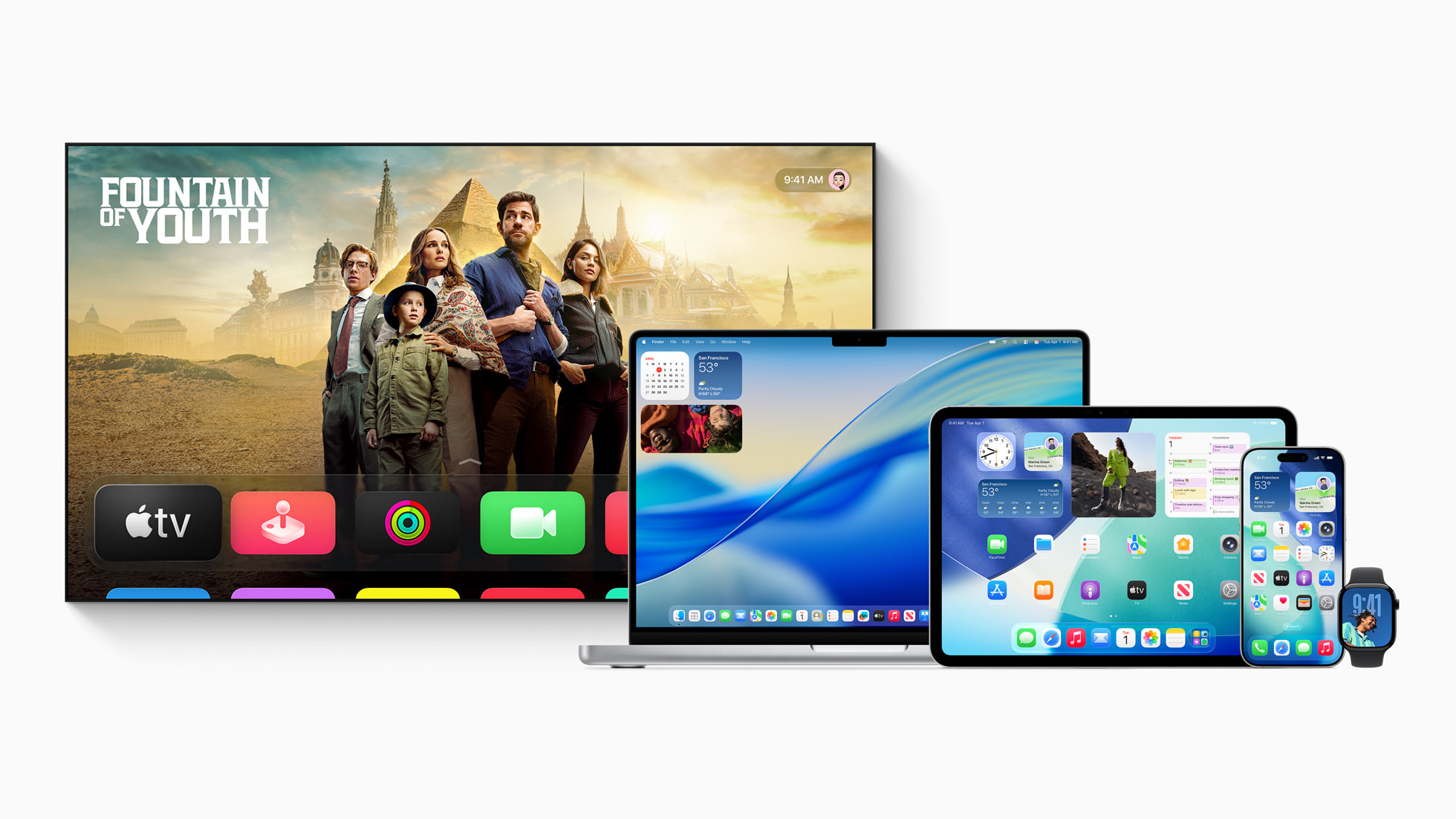
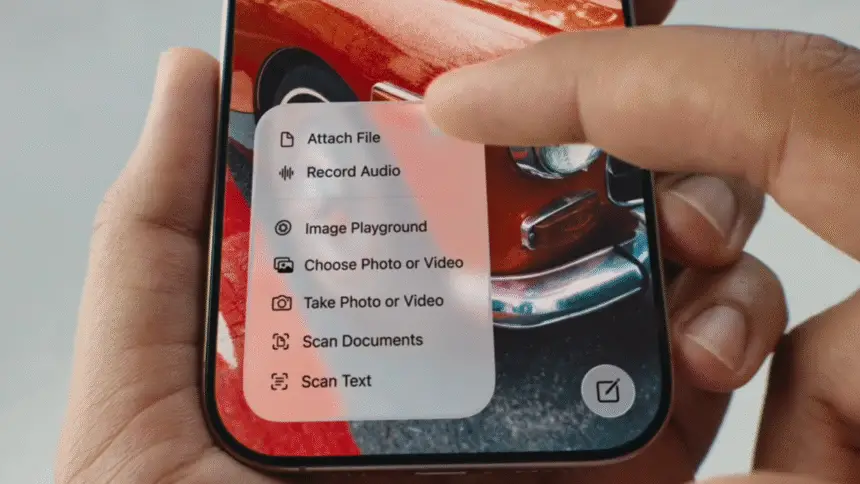
iOS 26.1 beta 4 brings updates to Apple's Liquid Glass featured
Image Credits: Apple

Contrary to the popular beliefs, Apple heard its users and over a few days, we got our hands on a toggle that lets users switch between two modes of Liquid Glass i.e. either Clear or Tinted. Consensus suggest Apple should’ve opted for an adjustable ‘Liquid Glass’ opacity, however, this move feels much better for now as Apple works on refining iOS 26 and curtail any bugs that might come in-between.,

Although the update does have its compounded effect, you won’t even find much difference unless you are really looking for it, in most places. However, having options to toggle gives users the option to adapt to ‘Liquid Glass’ in their preferred state. The feature is available via Settings >> Display and Brightness >> Liquid Glass and then, you can choose between ‘Tinted’ or ‘Clear’. For macOS 26.1, the option is available right under System Settings >> Appearance.

iOS 26.1 beta 4 marks the fourth beta release before the final stable version arrives early next week. Apple has already brought dozens of visual updates, refinements, bug fixes, and beyond, in order to push for its big release. You can stay updated with all the latest iOS updates right here on True-Tech.

Share This Article
Follow:
A wordsmith, a kin tech observer, a sci-fi fanatic and a scientific documentary buff.
Highlights
  • Apple is rolling out a new control setting for it's Liquid Glass feature on-board iOS 26.1 beta 4.
  • The settings allows users to change between 'tinted' and 'clear' view based on their preferences.
  • Apple is marking its last leg of beta rollout for the stable iOS 26.1 rolls out next week and this was a much-needed feature.

Apple recently released iOS 26.1 beta 4 for developers with a tonne of minor to major updates. Post the update, Apple now allows iOS 26 users to toggle its Liquid Glass feature as per their preference giving it a more welcoming feel than ever.

Now you can set Liquid Glass feature to “tinted” or “frosted” with iOS 26.1 beta 4

On-board the latest iOS 26.1 beta 4 for developers, Apple has tweaked ‘Liquid Glass’ to feature two settings i.e. ‘Clear’ and ‘Tinted’. For the unversed, this feature was rolled out with a toggle to turn it ON or OFF with nowhere else to go in-between. 

Instead of setting the Liquid Glass feature to ‘Clear’ as a default, now users can choose another control setting i.e. ‘Tinted’. Initially, the ‘Clear’ view on the liquid glass received warm welcome, however, due to the massive scale of adopters, some reports flocked in commenting how it makes it difficult to view options or notifications, such as on Apple Music or the notification panel. 

The ‘tinted’ feature gives control options and notification a tinted/opaque view while ‘clear’ liquid glass settings makes it almost transparent. Cut to now, the update has been released onboard macOS 26.1 and iPadOS 26.1 developer betas as well.

iOS 26.1 beta 4 brings updates to Apple's Liquid Glass featured
Image Credits: Apple

Contrary to the popular beliefs, Apple heard its users and over a few days, we got our hands on a toggle that lets users switch between two modes of Liquid Glass i.e. either Clear or Tinted. Consensus suggest Apple should’ve opted for an adjustable ‘Liquid Glass’ opacity, however, this move feels much better for now as Apple works on refining iOS 26 and curtail any bugs that might come in-between.,

Although the update does have its compounded effect, you won’t even find much difference unless you are really looking for it, in most places. However, having options to toggle gives users the option to adapt to ‘Liquid Glass’ in their preferred state. The feature is available via Settings >> Display and Brightness >> Liquid Glass and then, you can choose between ‘Tinted’ or ‘Clear’. For macOS 26.1, the option is available right under System Settings >> Appearance.

iOS 26.1 beta 4 marks the fourth beta release before the final stable version arrives early next week. Apple has already brought dozens of visual updates, refinements, bug fixes, and beyond, in order to push for its big release. You can stay updated with all the latest iOS updates right here on True-Tech.
Share This Article
Follow:
A wordsmith, a kin tech observer, a sci-fi fanatic and a scientific documentary buff.