- Apple officially replaced the older Wi-Fi Assist tool with a smarter system called Connectivity Assist in iOS 27.
- You can now disable cellular fallback for a single router, such as a home network with custom ad-blocking.
- A dedicated counter inside Cellular settings lets you track the exact mobile data this feature consumes.
Anyone who uses an iPhone knows the frustration when leaving the house, and iOS 27 Connectivity Assist aims to address that kind of connectivity problem. You step out the door, get into your car, and try to load a map or queue up a playlist. Everything just hangs. Your phone still sees one bar from your living room router. So it stubbornly refuses to switch over to 5G.
Over the last few weeks, a lot of users have searched for fixes to iOS 27 WiFi connection issues. They thought a bug was causing their internet problems. In reality, Apple added an upgrade in iOS 27. This upgrade is meant to fix that dead zone where your phone gets stuck on a weak signal.
How Apple fixes iOS 27 Wi-Fi connection issues with connectivity assist
If you look for the Wi‑Fi Assist toggle in iOS 27, you will not find it. Apple has. Redesigned that feature into Connectivity Assist. If you had Wi‑Fi Assist turned on before, Apple keeps that setting. Turns on Connectivity Assist right away.
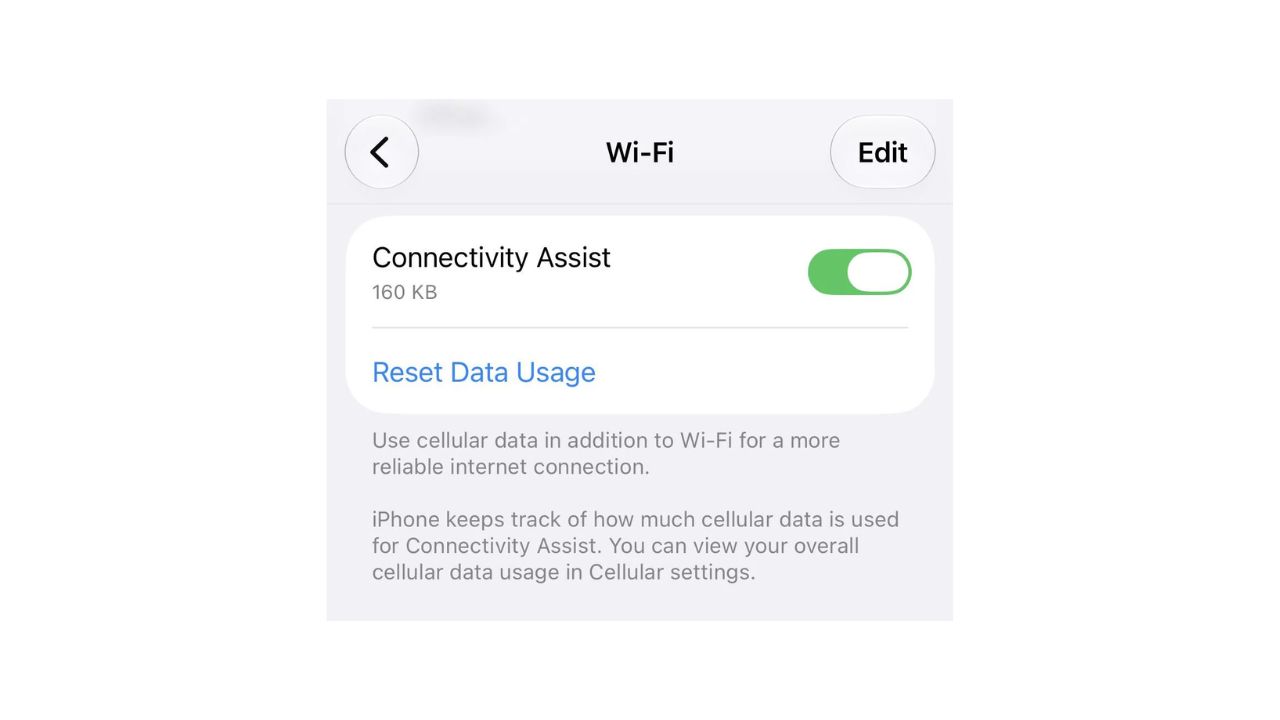
The idea is simple. Whenever your iPhone sees that a nearby Wi‑Fi network is slow or not working, all Connectivity Assist will use your cell data instead. Apple’s own guide says that this is useful in places such as your yard, a busy coffee shop, or a packed stadium where public Wi‑Fi routers get overwhelmed by lots of traffic.

Per-network control is the real upgrade
The biggest improvement here isn’t faster switching. For the time, Apple lets you shut this behavior off on a per-router basis. For instance, if you run a custom DNS setup or network-wide ad blocker on your home router, you probably want your iPhone staying on Wi-Fi. You can now manage both individual settings.
- Go to the Settings app. Select Wi-Fi.
- Scroll all the way down in the menu and turn off the main Connectivity Assist switch.
- If you want to exclude one network, tap the small “i” info icon next to that Wi-Fi name and switch off Use Connectivity Assist.
Watching your mobile data cap
Because iOS 27 WiFi connection issues often come from signals rather than complete disconnects, Connectivity Assist may activate more often than you expect. This convenience can quietly drain a data plan.
Luckily Apple added a data tracker inside Settings – Cellular. Scroll down to the Connectivity Assist line to see the megabytes Connectivity Assist has used. Tap Reset Data Usage to start a fresh count over the next few days.
Remember that iOS stops Connectivity Assist automatically while you are roaming abroad, when Low Data Mode is active, or inside third‑party media streaming apps. What do you think? Let me know your thoughts in the comment section.
Keep up with the tech that actually matters.
Add us as a preferred source on Google Search for quicker access to our coverage.