- Report suggests Google training AI using user's data from Gmail messages and attachments to name a few.
- Although it might not be the case since Google is pushing against the claims, this is still a well-known issue and here's how to turn off smart features.
- Here's how to turn off Google smart features on desktop and mobile apps.
Google has been training its AI (read Gemini AI) for ages across Google apps, Workspace, and its entire ecosystem. However, the latest flurry of reports, especially one from Malwarebytes, sheds light on how Google could be using Gmail messages, attachments, and other data to train its AI models. Although Google has pushed back against the claims, there’s always an ounce of doubt that could signal the search engine giant’s intentions, given the fact that many such AI tech giants have been using hacks to gain access to users’ data without their consent.
Google’s training of AI appears to be tied to its smart features
According to Malwarebytes, Google could be potentially training its AI models using smart features, something that has been available for ages. It is what makes your Google apps easier to use, be it spell checking, auto-capitalization, suggested responses, and others.
In any case, it is quite evident that AI is everywhere, and it requires user data to get better. With almost every person holding a phone, it becomes a potential endpoint for training AI models. With the latest reports in mind, we went on to disable smart features until the mist clears itself.
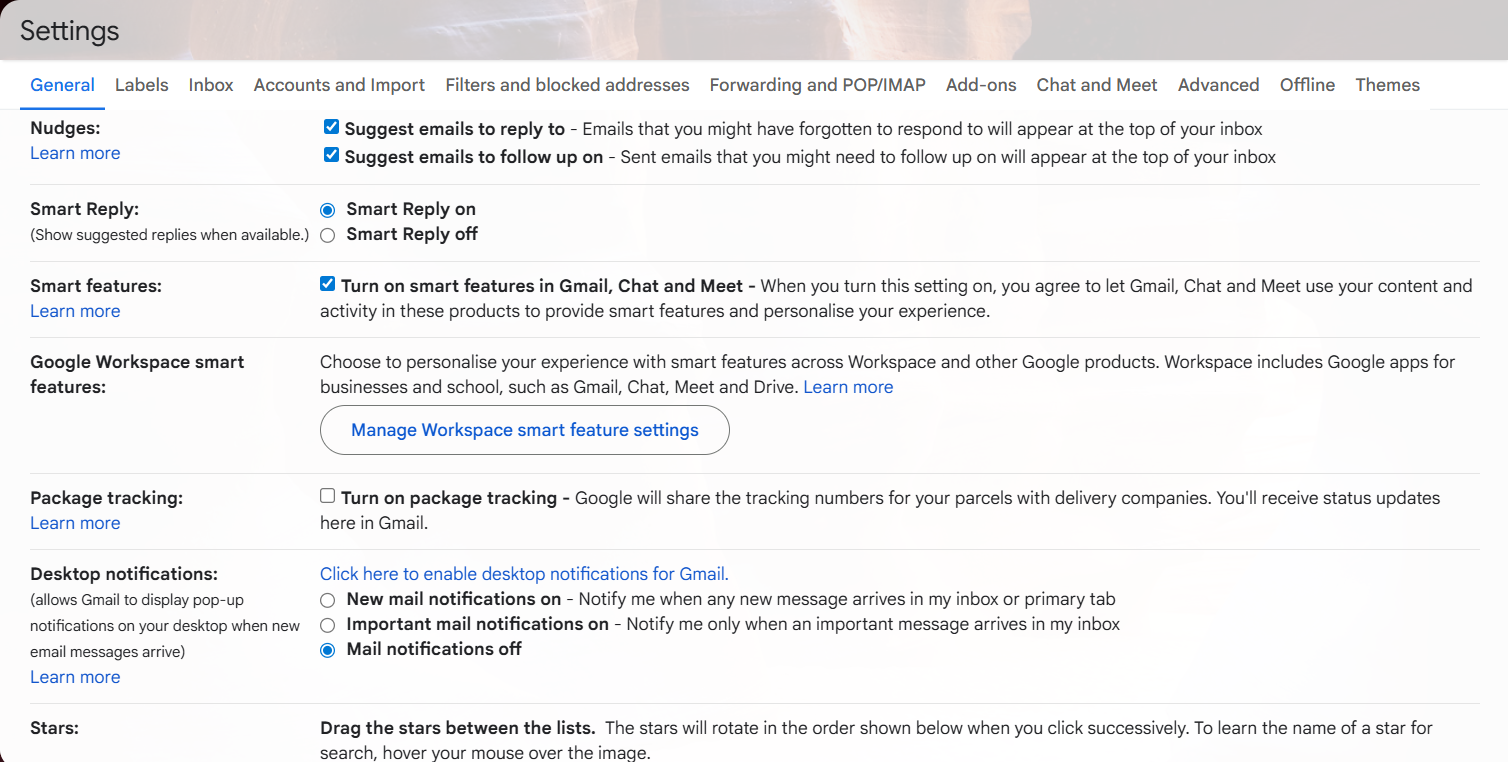
How to opt out of Google training AI on user data?
Well, to opt out or turn off the settings that let Google use user data to train AI in the first place, here’s how you can turn off Smart Features.
Step 1: Turn off smart features on Gmail, Chat, and Meet
- 1: First up, open Gmail on your PC or app.
- Head over to the “gear icon” >> See all settings (on desktop) or Menu >> Settings (on mobile).
- Scroll to find “Smart Features” and uncheck/untick it to turn it off.
- Save changes and check again if the feature is unchecked. If yes, proceed to Step #2.
Step 2: Turn off Google Workspace smart features
- First up, go to Settings on Gmail on your desktop or mobile app.
- Search for “Google Workspace smart features” that should show a bunch of options, including Gmail, Calendar, Drive, etc.
- Next, tap against “Smart features in Google Workspace” and “Smart features in other Google products” to turn them off. This is indicated by a dark-colored toggle (it turns blue when turned on).
- Finally, hit “Save” and proceed.

Wrapping up!
Turning off smart features can prevent Google from training its Gemini AI in case there’s just a speck of truth in the claims. It’s better to turn off certain features including personalization to prevent any tech giant from using your data to train its AI.