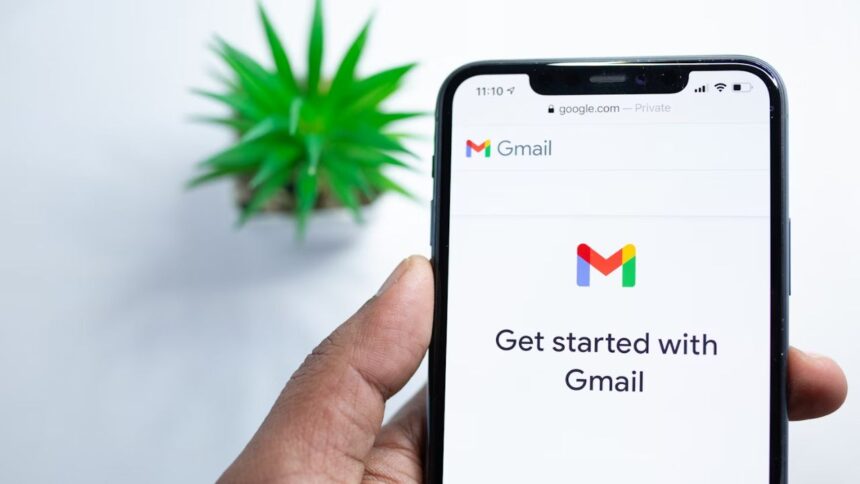
- Google has introduced a new way to manage subscriptions on Gmail, a way to declutter inbox.
- It is a great way to reduce email spamming from senders who might not have signed for.
- The feature is available across web, iOS and Android apps.
There are a few unanswered questions that have kept experts on the fence. What is the origin of our universe? What happens if you run the whole world’s power grid solely on nuclear power? And, how to manage subscriptions on Gmail? Well, I know I almost caught you by surprise, and it just hit you — there are hundreds of newsletters you want to read (someday*) but haven’t yet, and for good reasons — most of them are just lying in your inbox for god knows why.
I usually subscribe to newsletters when I want to access something on a website, or say, I accidentally agreed to their newsletter subscriptions and now, they send it to me every week. Now that we are all on the same page, let’s see what this new feature is and how you can manage subscriptions on Gmail with just a click.
Introducing a new way to manage subscriptions on Gmail
We have done our part on how you can clear your inbox (that applies to all email providers) in a previous guide. Google has recently introduced a new that help users manage subscriptions on Gmail.
Earlier, you could unsubscribe from a newsletter or email list on an individual level. It means if you get 5 weekly newsletters for 5 different individuals, you have to subscribe to each one of them individually. Of course, this creates a lot of friction, prompting users to let the newsletters and emails from a bazillion senders pile up only to delete these emails in one go.
Perhaps, that means even a critical piece of email, such as the one you received from your employer, bank, or others, might get in the rift too, and since you cleared the bin as well, there’s no way to get it back. There’s also how your 15GB of free Gmail space piles up, provoking you to delete hundreds of emails at once, only to accidentally delete that one email you had to save for xyz reasons.
However, the new feature allows you to permanently unsubscribe from these emails, preventing your inbox from being spammed all the time. Here’s how it works.
How to manage subscriptions on Gmail?
Your Gmail is generally divided into two sections. On the left, you have a navigation pane that takes you from inbox to sent mail to Outlook, and so on. On the right, more than 70% of the window is covered by the actual emails.
Step #1: You need to hover your mouse over the navigation pane.
Step #2: Head over to the ‘Manage Subscriptions’ section. If it is not visible, hit ‘More’ to reveal more options, and there you have it.
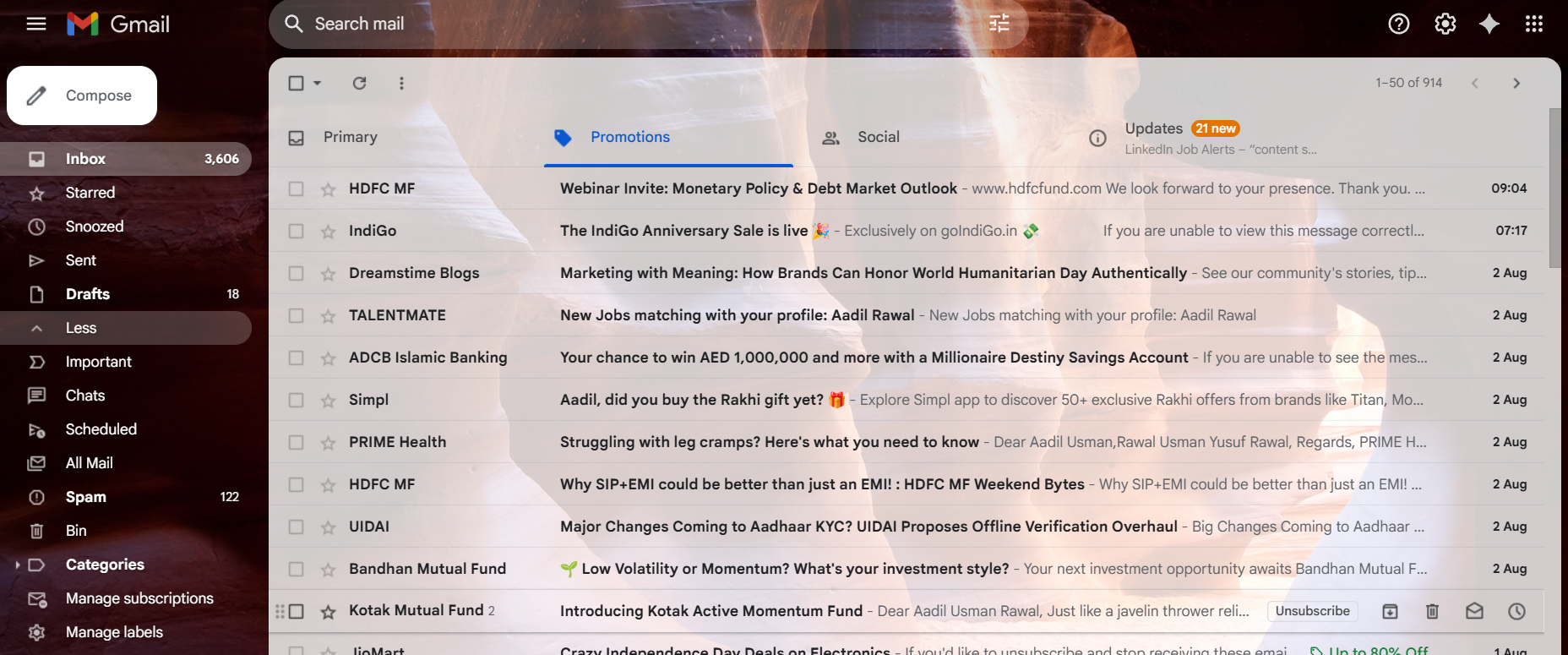
Step #3: Now you have a list of all the email newsletters you have signed up for, whether willingly or accidentally.
Step #4: Click on ‘Unsubscribe’ against the newsletter you want to get rid of and confirm when the prompt appears.
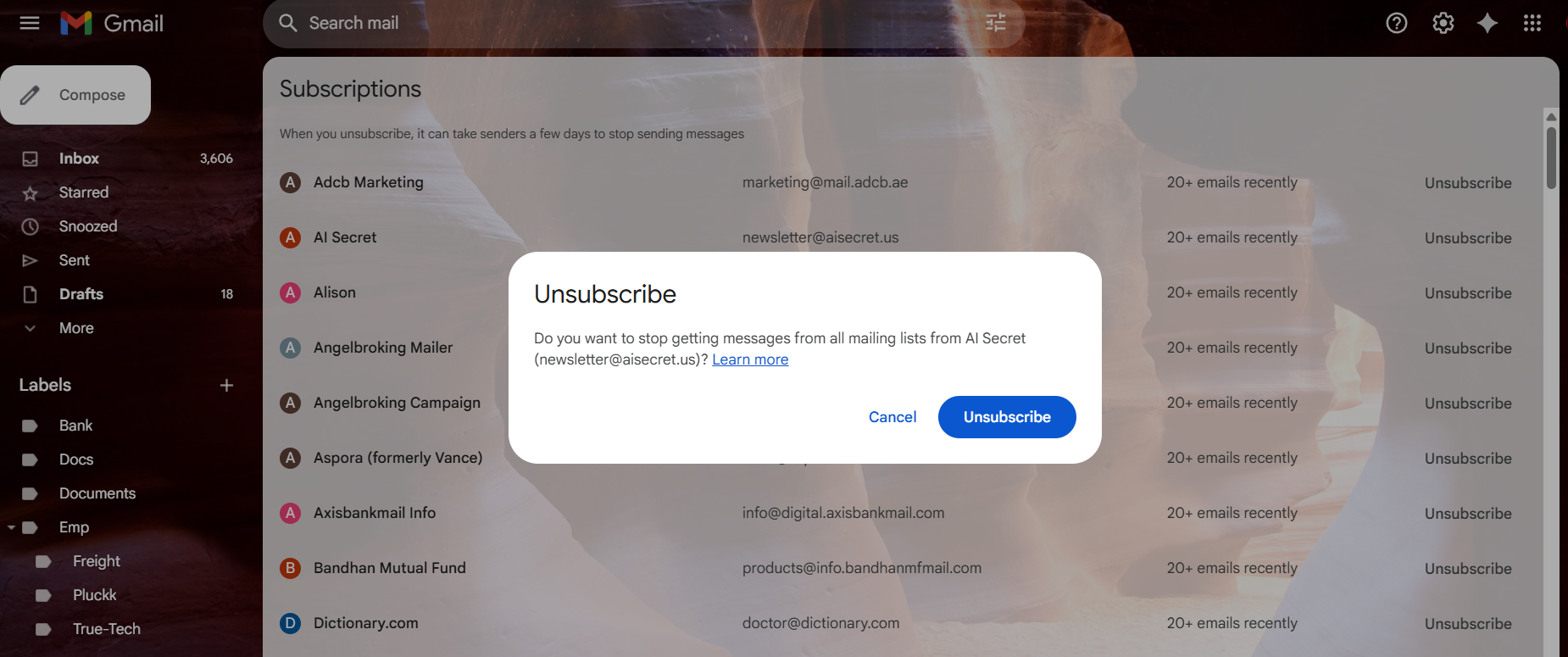
Step #5: Repeat the same for all other emails, and soon enough, you will have a clutter-free inbox for yourself.
Related

Wrapping up
Managing subscriptions on Gmail has been much anticipated, and luckily, it is here. It has been subsequently rolled out for web, iOS, and Android apps as well. Do note that depending upon your device, make, model, country, etc., the feature might take some time to arrive unless it’s already there. You might not see the feature in effect across all Google accounts, which means a bit of waiting is recommended.