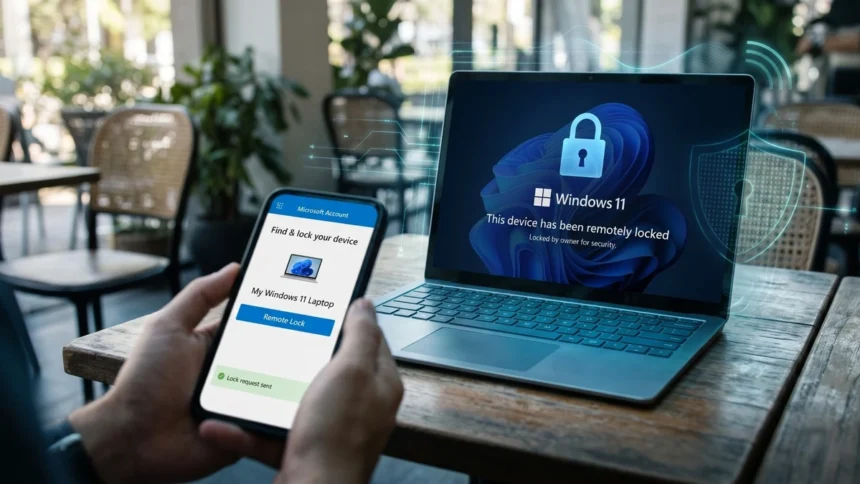
- Microsoft is testing a new way to secure lost or stolen Windows 11 PCs remotely.
- The feature comes with an interesting approach that locks devices without wiping their data.
- - The latest Insider builds also introduce new security improvements for FIDO2 passkeys.
With the release of new Windows 11 Insider Preview builds to the beta and experimental channels, a bunch of handful features, including Microsoft remote lock, is rolling out. It is a security feature that enables enterprise IT administrators to remotely lock lost or stolen Windows devices without erasing their data.
Microsoft is intending to help organizations prevent unauthorized access to the company’s data while protecting their existing data and management settings. Below you will learn what the new Windows 11 build brings to the table.
How Microsoft remote lock works
Now, coming to how it works? It’s pretty simple. Once an administrator enables remote lock via Microsoft Intune, Windows automatically signs out all active sessions and replaces the usual sign-in page with a dedicated Device Locked screen. A visual image is attached below to show you how it actually appears on a stolen or lost device.
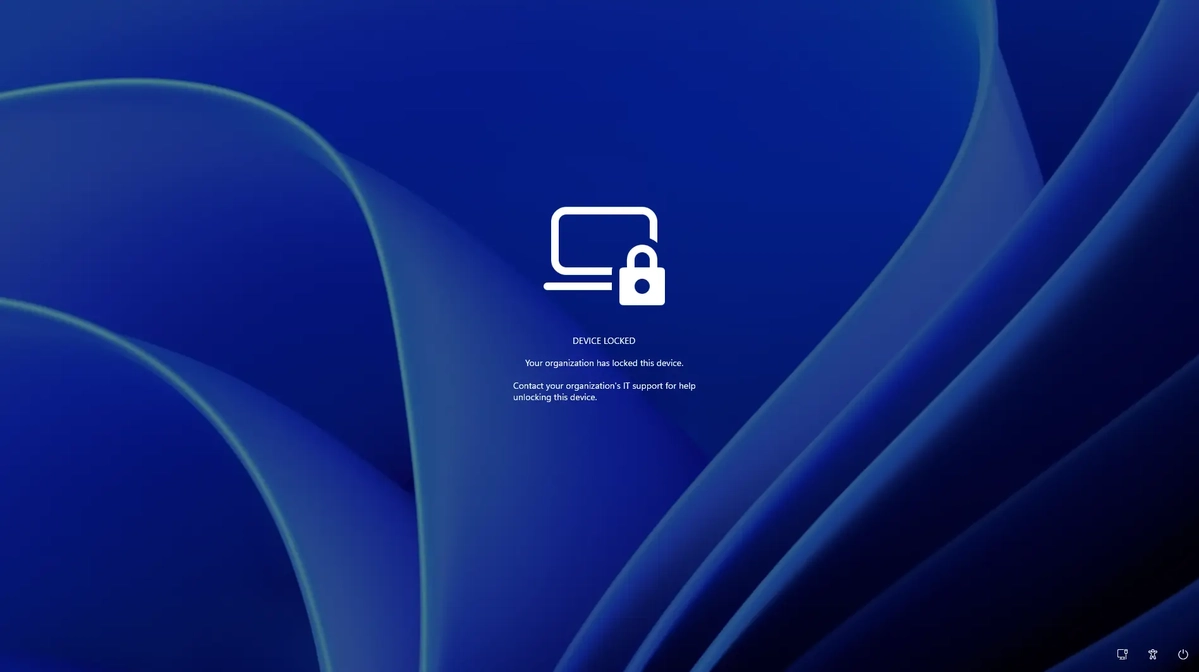
The feature also blocks any authentication steps on the device, including:
- Windows Hello PINs.
- Account passwords.
- Local administration sign-ins.
- Web-based sign-in options.
Although only an authorized administrator can remove the lock using Intune. However, the user’s Microsoft account credentials will remain valid and can be used to access other devices that have not been locked using this feature.
To tighten security, Microsoft says the lock remains active even if the system restarts or the device goes offline. Interestingly, user files, device enrollment, and BitLocker protection remain unchanged. Moreover, administrators will have an option to customize the lock screen with a reason for the lock and recovery instructions for contacting IT support.

How IT administrators can enable remote lock
Microsoft’s official documentation notes that administrators can access the feature through custom configuration profiles in the Intune admin center.
Here’s how IT administrators enable remote lock:
- Open the Intune center and head to Devices > Windows > Configuration > Create > New policy.
- Choose Windows 10 or later, and navigate Template > Custom.
- Create a configuration profile, such as Remote lock – ON, and add the required OMA-URI setting with LockState set to 1.
- Delegate the profile to a dedicated device group for locked devices. After adding the device, it triggers the lock at its next Intune check-in.
- At last, to unlock the device, create another configuration profile with LockState set to 0, and assign it to an unlock group; finally, move the device from the locked group to the unlock group.
The required configuration setting is:
| Setting | Value |
|---|---|
| OMA-URI | ./Device/Vendor/MSFT/RemoteDeviceLock/LockState |
| Date type | Integer |
| Lock | 1 |
| Unlock | 0 |
Administrators can also alter optional settings, whether to display a lock reason and recovery contact information on the locked screen. If not chosen, it will simply show a basic interface with text, “DEVICE LOCKED.”
Availability
Microsoft has released Windows 11 Insider Preview Build 26320.10003 to the beta channel and Build 26340.10013 to the Experimental channel. As of now, the feature is a preview capability meant for enterprise-managed devices. Nonetheless, Microsoft has not announced a general/public availability yet.
Keep up with the tech that actually matters.
Add us as a preferred source on Google Search for quicker access to our coverage.