5 Awesome Android Tips and Tricks Everyone Should Try (June 2025)

Aadil Raval
8 Min Read
Highlights
  • Android offers wide range of customizations and features unmatched by any OS out there.
  • We believe it is omni powerful and thus, we bring our latest edition of Android Tips and Tricks.
  • The aim is to educate or showcase our users with various tips and tricks they can leverage on their Android phones to bring the best of user experience on a click.

Well, well, well, looking for Android tips and tricks? Android phones offer an impressive list of customization options, tips, and tricks, that will help you get a flair on your device. It’s certain that you might be knowing some of these tricks but hey, it’s not possible to know ‘em all, isn’t it? Well, we at True-Tech will bring the best of Android tips and tricks in a monthly edition, and here’s our debutant consisting of the first 5’s that you can check out. 

5 Awesome Android Tips and Tricks Everyone Should Try

We are unleashing the Kraken, giving you the first of 5 tricks that you should definitely try.

#1: Make the App the Default 

Ever come across a dialog box when opening certain types of files such as XML, PDF, etc.? If you have multiple apps available serving similar functions, your Android phone will let you choose the app you want to use and open that particular file. 

Although this is a great feature, it often adds a few extra steps since you need to select ‘that particular app’ to open ‘that type of file’. That’s where default apps come into play. It typically includes mail, SMS, browsers, phones, digital assistants, and so on. Here’s how you can set up default apps on Android phones.

Android Tips and Tricks - How To Choose Default Apps
Image Credits: True-Tech

Step #1: Open Settings on your phone.
Step #2: Proceed to “Apps >> Default Apps” or search for “Default Apps”.
Step #3: Under ‘Default Apps’, you will have a variety of options such as browser, phone, SMS, etc.
Step #4: Click on each of these categories and select a default app you want to open.
You’ve successfully set a default app for that particular function such as Microsoft Excel to open XML/Excel files or VLC Player for videos, etc. 

#2: Flip Tabs on Google Chrome

Let’s say you are using two windows/tabs on Google Chrome, for instance, Facebook and Instagram, and you want to flip between them. The usual way is to click on the ‘tab’ button at the top and select another tab you want to access. Although it is swift, the process still takes a few seconds, especially if you have too many tabs open. That would be possible only if there was a better way to flip between tabs on Google Chrome. Well, there is.
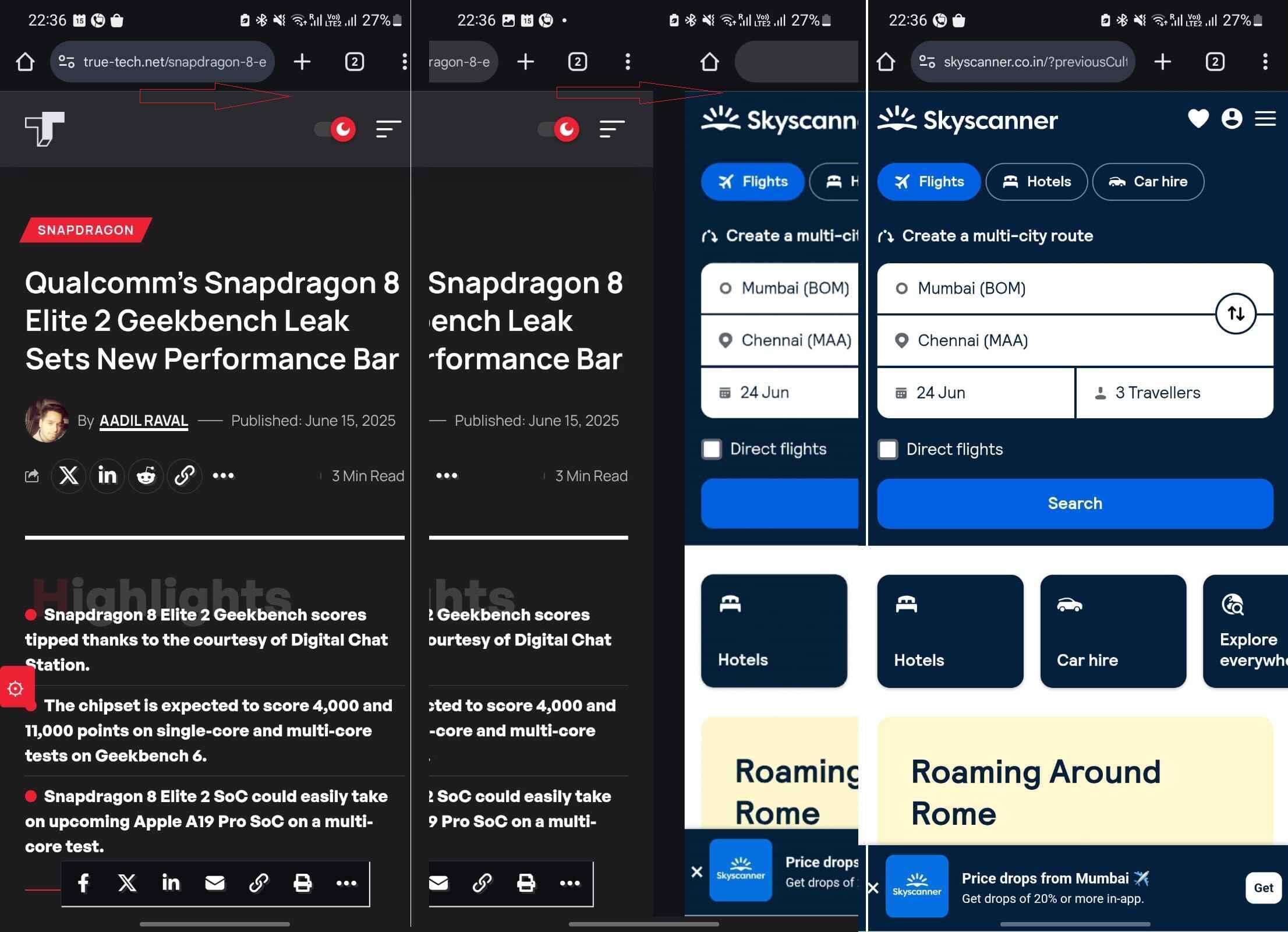
Flip Google Chrome Tabs
Image Credits: True-Tech

Turns out your Android smartphone lets you slide between tabs on Google Chrome tabs simply by doing a swipe motion on the address bar. 
Step #1: All you need to do is swipe right or left on the address bar (without clicking on it) and you will magically land on the next tab. 
Step #2: In fact, you will swipe it again to go on another slide and the one after that, and so on. 
Step #3: Swipe in the opposite direction, and you will end up on the previous Chrome tab and so on.

#3: Flip ya’ Google Accounts

This one is for those who use multiple Google Accounts on their phones. Let’s say you are on Gmail and you need to check emails across these accounts. The usual way would be to go to Gmail, click on your ‘profile picture’ located on the extreme top-right, and then, select the Google account of your choice. I get it, there’s no rocket science involved here but what if I say there’s an Android hack to switch between Google accounts at a lightning-fast pace? Here’s how.

Step #1: Open Gmail on your phone.
Step #2: Make a ‘Swipe downwards’ motion on the profile picture location in the top-right corner, and you will see the app changing all its content to correspond to the selected Google account.

Note: It works similarly to how you change tabs on Google Chrome which means, a ‘swiping upwards’ motion will get you to the previous account. In fact, this simple Android tips and tricks works on almost all Google apps, viz. Gmail, Google Photos, Google Drive, Google Meet, and Google Play Store.

#4: Say Goodbye to Network Snarls

Are network issues troubling you? The call is connected, but the voice is too weak or there’s a lot of disturbance on the call? Is the network weak? Blah. Blah. Blah. If that’s something you are facing on your phone, try this simple trick. 
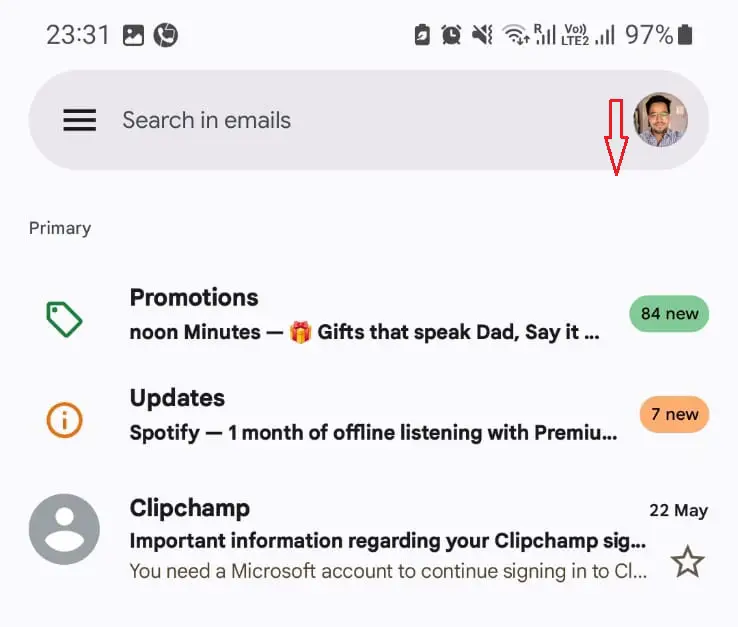
Flip Google Accounts
Image Credits: True-Tech

Step #1: Turn on Airplane Mode on your phone.
Step #2: Wait for a few seconds and turn it off.
This method actually helps your phone reconnect to a nearby cell tower ensuring better network connectivity. If not, try rebooting your phone as it might help get a network boost in some cases.

#5: Never Miss Notifications

As a common Android user, you must be receiving hundreds of notifications a day and that can be annoying. You know what’s more annoying? It’s the fact that you cleared all the notifications but missed a rather crucial one such as an important software alert or a push notification. 

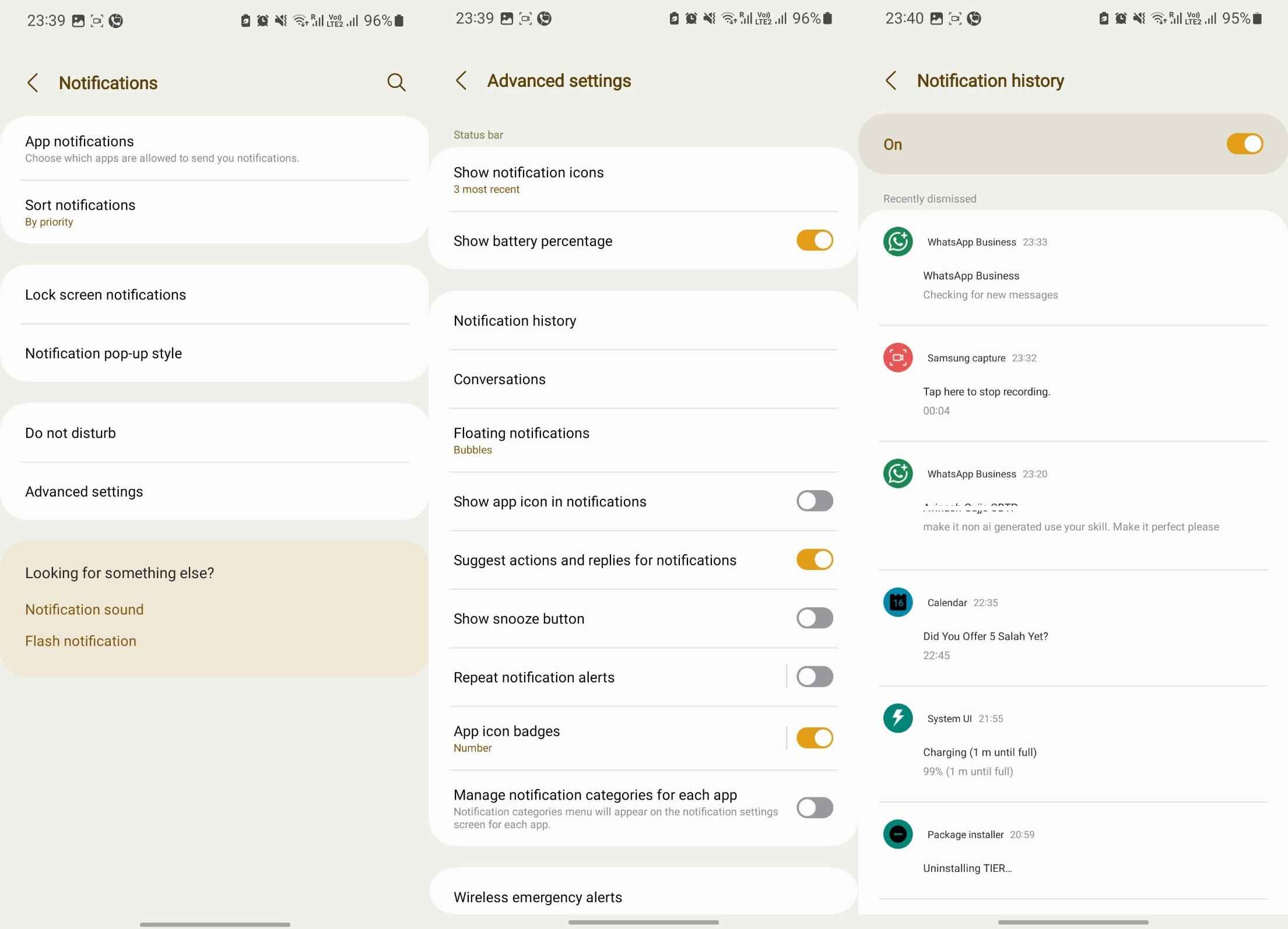
Starting Android 11, your Android smartphone allows you to never miss notifications by introducing a feature called ‘Notification History’. As the name suggests, the feature tracks all the notifications you might have missed. It even includes notifications from WhatsApp that the sender might’ve deleted even before you could read it, so yeah, it’s pretty much a sure shot try.
Notification History
Image Credits: True-Tech

Step #1: Open Settings on your phone and head towards Notifications >> Notification History.
Step #2: Turn on the toggle and commence using it.
Step #3: Next time when you miss a notification, you can either swipe down the notification panel and click on history or use ‘Step #1’ to find the notifications you missed. 

Wrapping Up

Well, as this is a monthly series, we decided to keep it capped as ‘5s’ so yes, you will see the five best picks every month giving you an edge on your Android phone. These Android tips and tricks are worth it as they make your life a bit easier. Let us know which of these you already knew and which one opened up something new for you in the comments below.

Share This Article
Follow:
A wordsmith, a kin tech observer, a sci-fi fanatic and a scientific documentary buff.
Highlights
  • Android offers wide range of customizations and features unmatched by any OS out there.
  • We believe it is omni powerful and thus, we bring our latest edition of Android Tips and Tricks.
  • The aim is to educate or showcase our users with various tips and tricks they can leverage on their Android phones to bring the best of user experience on a click.

Well, well, well, looking for Android tips and tricks? Android phones offer an impressive list of customization options, tips, and tricks, that will help you get a flair on your device. It’s certain that you might be knowing some of these tricks but hey, it’s not possible to know ‘em all, isn’t it? Well, we at True-Tech will bring the best of Android tips and tricks in a monthly edition, and here’s our debutant consisting of the first 5’s that you can check out. 

5 Awesome Android Tips and Tricks Everyone Should Try

We are unleashing the Kraken, giving you the first of 5 tricks that you should definitely try.

#1: Make the App the Default 

Ever come across a dialog box when opening certain types of files such as XML, PDF, etc.? If you have multiple apps available serving similar functions, your Android phone will let you choose the app you want to use and open that particular file. 

Although this is a great feature, it often adds a few extra steps since you need to select ‘that particular app’ to open ‘that type of file’. That’s where default apps come into play. It typically includes mail, SMS, browsers, phones, digital assistants, and so on. Here’s how you can set up default apps on Android phones.

Android Tips and Tricks - How To Choose Default Apps
Image Credits: True-Tech

Step #1: Open Settings on your phone.
Step #2: Proceed to “Apps >> Default Apps” or search for “Default Apps”.
Step #3: Under ‘Default Apps’, you will have a variety of options such as browser, phone, SMS, etc.
Step #4: Click on each of these categories and select a default app you want to open.
You’ve successfully set a default app for that particular function such as Microsoft Excel to open XML/Excel files or VLC Player for videos, etc. 

#2: Flip Tabs on Google Chrome

Let’s say you are using two windows/tabs on Google Chrome, for instance, Facebook and Instagram, and you want to flip between them. The usual way is to click on the ‘tab’ button at the top and select another tab you want to access. Although it is swift, the process still takes a few seconds, especially if you have too many tabs open. That would be possible only if there was a better way to flip between tabs on Google Chrome. Well, there is.

Flip Google Chrome Tabs
Image Credits: True-Tech

Turns out your Android smartphone lets you slide between tabs on Google Chrome tabs simply by doing a swipe motion on the address bar. 
Step #1: All you need to do is swipe right or left on the address bar (without clicking on it) and you will magically land on the next tab. 
Step #2: In fact, you will swipe it again to go on another slide and the one after that, and so on. 
Step #3: Swipe in the opposite direction, and you will end up on the previous Chrome tab and so on.

#3: Flip ya’ Google Accounts

This one is for those who use multiple Google Accounts on their phones. Let’s say you are on Gmail and you need to check emails across these accounts. The usual way would be to go to Gmail, click on your ‘profile picture’ located on the extreme top-right, and then, select the Google account of your choice. I get it, there’s no rocket science involved here but what if I say there’s an Android hack to switch between Google accounts at a lightning-fast pace? Here’s how.

Step #1: Open Gmail on your phone.
Step #2: Make a ‘Swipe downwards’ motion on the profile picture location in the top-right corner, and you will see the app changing all its content to correspond to the selected Google account.

Note: It works similarly to how you change tabs on Google Chrome which means, a ‘swiping upwards’ motion will get you to the previous account. In fact, this simple Android tips and tricks works on almost all Google apps, viz. Gmail, Google Photos, Google Drive, Google Meet, and Google Play Store.

#4: Say Goodbye to Network Snarls

Are network issues troubling you? The call is connected, but the voice is too weak or there’s a lot of disturbance on the call? Is the network weak? Blah. Blah. Blah. If that’s something you are facing on your phone, try this simple trick. 

Flip Google Accounts
Image Credits: True-Tech

Step #1: Turn on Airplane Mode on your phone.
Step #2: Wait for a few seconds and turn it off.
This method actually helps your phone reconnect to a nearby cell tower ensuring better network connectivity. If not, try rebooting your phone as it might help get a network boost in some cases.

#5: Never Miss Notifications

As a common Android user, you must be receiving hundreds of notifications a day and that can be annoying. You know what’s more annoying? It’s the fact that you cleared all the notifications but missed a rather crucial one such as an important software alert or a push notification. 

Starting Android 11, your Android smartphone allows you to never miss notifications by introducing a feature called ‘Notification History’. As the name suggests, the feature tracks all the notifications you might have missed. It even includes notifications from WhatsApp that the sender might’ve deleted even before you could read it, so yeah, it’s pretty much a sure shot try.

Notification History
Image Credits: True-Tech

Step #1: Open Settings on your phone and head towards Notifications >> Notification History.
Step #2: Turn on the toggle and commence using it.
Step #3: Next time when you miss a notification, you can either swipe down the notification panel and click on history or use ‘Step #1’ to find the notifications you missed. 

Wrapping Up

Well, as this is a monthly series, we decided to keep it capped as ‘5s’ so yes, you will see the five best picks every month giving you an edge on your Android phone. These Android tips and tricks are worth it as they make your life a bit easier. Let us know which of these you already knew and which one opened up something new for you in the comments below.
Share This Article
Follow:
A wordsmith, a kin tech observer, a sci-fi fanatic and a scientific documentary buff.