How to turn off visible AI watermarks in Google Gemini?

Aadil Raval
2 Min Read
Highlights
  • Google now lets you turn off media watermarks on Google Gemini. Here's how you can do it.
  • This includes images, videos, and songs generated using Gemini, Omni, and Flow by Google.
  • Note that it still includes SynthID and C2PA metadata watermarks that are invisible to human but visible to AI tools.

Google Gemini now lets you generate media without watermarks. Yep, that’s true. Starting as early as you read this, Google won’t add any watermarks on media content generated using Google Gemini, Google Omni, and Google Flow, although it will still carry watermarks that are not visible to human eyes.

Google Gemini won’t impose media watermarks

Google has confirmed that it will no longer add any watermarks to media content, namely images, music, and videos, using two of its major AI tools. This is a major upgrade over OpenAI’s ChatGPT and other AI tools that still impose visible watermarks. The only exceptions are countries that deem it mandatory to have a visible media watermark on the AI content.

How to turn off media watermarks on Google Gemini?
Representational image generated using AI by TrueTech

Note that the settings have already been updated. Having no visible watermarks doesn’t mean there are no watermarks at all. This is because, by law, AI applications must carry watermarks dictating that the content in discussion was AI-generated. Thus, Google’s SynthID and C2PA metadata will be used as tell-tale signs confirming AI-generated content. However, this won’t be visible to human eyes.

How to turn off media watermarks on Gemini?

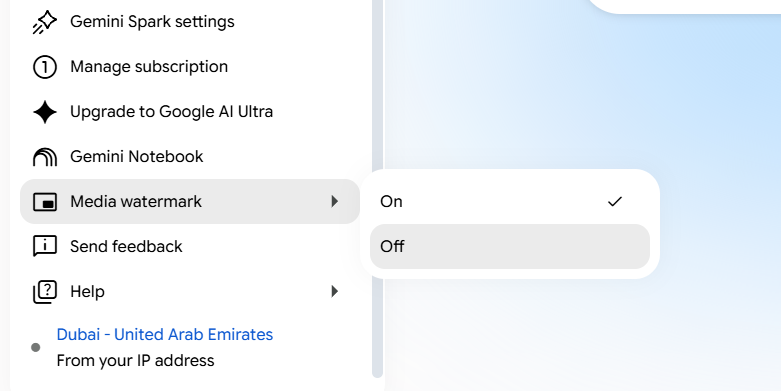
Well, here’s how you can turn off media watermarks on Google Gemini on desktops. 
How to turn off media watermarks on Google Gemini?
Image Credits: Google Gemini
  1. Go to Google Gemini (https://gemini.google.com/) on your desktop.
  2. Hit the cogwheel icon in the bottom-left corner above your account’s DP.
  3. Spot ‘Media Watermarks’ and scroll on that to reveal two options—’Yes’ and ‘No.’
  4. Select ‘Off’ to turn it off (of course).

Note: This new feature is available for both free and paid plans. This is the same process for Google Gemini on the web on your Android and iPhone devices. If it is not visible, give it some time, as the feature is still rolling out.

Keep up with the tech that actually matters.

From breaking news to deep dives, TrueTech brings you the tech stories worth knowing.
Add us as a preferred source on Google Search for quicker access to our coverage.

Add TrueTech as a preferred source on Google
Share This Article
Follow:
A wordsmith, a kin tech observer, a sci-fi fanatic and a scientific documentary buff.
Highlights
  • Google now lets you turn off media watermarks on Google Gemini. Here's how you can do it.
  • This includes images, videos, and songs generated using Gemini, Omni, and Flow by Google.
  • Note that it still includes SynthID and C2PA metadata watermarks that are invisible to human but visible to AI tools.

Google Gemini now lets you generate media without watermarks. Yep, that’s true. Starting as early as you read this, Google won’t add any watermarks on media content generated using Google Gemini, Google Omni, and Google Flow, although it will still carry watermarks that are not visible to human eyes.

Google Gemini won’t impose media watermarks

Google has confirmed that it will no longer add any watermarks to media content, namely images, music, and videos, using two of its major AI tools. This is a major upgrade over OpenAI’s ChatGPT and other AI tools that still impose visible watermarks. The only exceptions are countries that deem it mandatory to have a visible media watermark on the AI content.

How to turn off media watermarks on Google Gemini?
Representational image generated using AI by TrueTech

Note that the settings have already been updated. Having no visible watermarks doesn’t mean there are no watermarks at all. This is because, by law, AI applications must carry watermarks dictating that the content in discussion was AI-generated. Thus, Google’s SynthID and C2PA metadata will be used as tell-tale signs confirming AI-generated content. However, this won’t be visible to human eyes.

How to turn off media watermarks on Gemini?

Well, here’s how you can turn off media watermarks on Google Gemini on desktops. 

How to turn off media watermarks on Google Gemini?
Image Credits: Google Gemini
  1. Go to Google Gemini (https://gemini.google.com/) on your desktop.
  2. Hit the cogwheel icon in the bottom-left corner above your account’s DP.
  3. Spot ‘Media Watermarks’ and scroll on that to reveal two options—’Yes’ and ‘No.’
  4. Select ‘Off’ to turn it off (of course).

Note: This new feature is available for both free and paid plans. This is the same process for Google Gemini on the web on your Android and iPhone devices. If it is not visible, give it some time, as the feature is still rolling out.

Keep up with the tech that actually matters.

From breaking news to deep dives, TrueTech brings you the tech stories worth knowing.
Add us as a preferred source on Google Search for quicker access to our coverage.

Add TrueTech as a preferred source on Google
Share This Article
Follow:
A wordsmith, a kin tech observer, a sci-fi fanatic and a scientific documentary buff.