- Apple has rolled out iOS 26 public beta, the next frontier before iOS 26 stable version walks in.
- We got our hands on how to install iOS 26 public beta using step-by-step instructions.
- With a tonne of new features, you must be aware of the possible bugs and errors that comes in-between in case of beta updates.
With the latest iOS 26 public beta out and about, iPhone users should be scrabbling to upgrade to the latest iOS version to try a multitude of new features that we have discussed here. Well, this guide tells you how you can install iOS 26 public beta on your iPhone and touches on iPadOS 26 public beta for iPads as well, in simple and easy-to-understand instructions.
Should I install iOS 26 public beta?
Before we can count on the steps to install the latest iOS beta, it’s important to answer this question, whether you should install it in the first place? Well, the answer is, you could, but with caution. It is a beta update and thus, unstable, and many of its features might be broken, often riddled with bugs and performance issues.
This is why Apple recommends not installing the latest beta updates on primary devices; however, if you are okay with a few features going defunct, you could try it right away. If you have a secondary phone, I don’t think so, you should think a lot about the upgrade, just do it, but expect some issues on the way. The Cupertino-based giant will eventually resolve these issues in the later updates that should come in a few days/weeks before the stable iOS launches this fall.
How to install iOS 26 public beta?
Now that we’ve got you up-to-date with the ‘why’ and ‘if’, here’s the ‘how’. We have bifurcated the guide into two parts — backup and upgrade. Let’s get to it.
Part A: Backup
I can’t stress this enough, but you should always take a backup of your iPhone or iPad before any upgrade, should it fail. This method secures a copy of your data should you wish to revert to the previous iOS version. Here’s how.
Step #1: Plug your iPhone into a Mac using a supported cable.
Step #2: When you see a prompt, ‘Allow’ the pairing that establishes the connection.
Step #3: Next, use the Finder app on your Mac to locate your iPhone that should carry your name by default, such as “Aadil’s iPhone 15 Pro” (which is my name).
Step #4: Hit the “Trust” button in the Finder app and enter the passcode to confirm.
Step #5: Now that your iPhone is all connected, head over to the ‘General’ tab and select “Back up all the data on your iPhone to this Mac”.
Step #6: There’s a feature to encrypt all the backups that you can select by hitting “Encrypt local backup”, which lays a password protection over your backup.
Step #7: Finally, hit “Back Up Now” to initiate the process.
You should see the time and data on the last backup within the ‘General’ tab, which confirms which backup image you have for now.
Step #8: In the event of a backup, simply tap on “Restore Backup” in the Finder window, and voila, you’ve got the latest backup on your iPhone in case of reversion.
Part 2: How to Download iOS Public Beta?
Step #1: Go to Apple’s Beta Software Program and sign up with your Apple account credentials.
Step #2: Head over to “Settings >> General >> Software Update” on your iPhone.
Step #3: Tap on “Beta Updates”, where the latest OS update should be available. If it is not visible, turn off “Automatic Update” and refresh to find the beta update.
Step #4: Under “Beta Updates”, locate the latest “iOS 26 public beta”, hit ‘back’, and then, tap on “Update Now”. If not, try to download and install under beta updates and this should be done in a jiffy.

List of iOS 26 Supported Devices
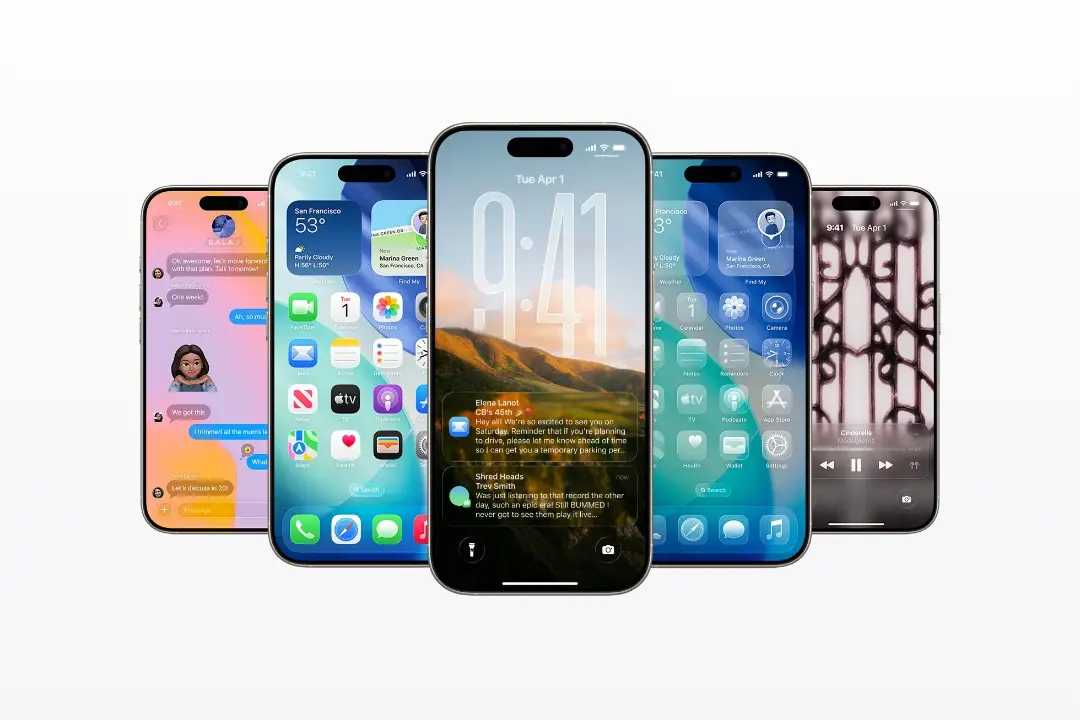
- iPhone 16 Series
- iPhone 15 Series
- iPhone 14 Series
- iPhone 13 Series
- iPhone 12 Series
- iPhone 11 Series
- iPhone SE (2nd gen and later)
- iPad Pro (M4)
- iPad Pro 11” (1st gen and later)
- iPad Pro 12.9” (3rd gen and later)
- iPad Air (M2 and M3)
- iPad Air (3rd gen and later)
- iPad Air (A16)
- iPad (8th gen and later)
- iPad Mini (5th gen and later)
- iPad Mini (A17 Pro)